Interactive Stream Polls For Streamers: Setup, Moderation, 2–4 Rules
Interactive Stream Polls For Streamers: Setup, Moderation, 2–4 Rules

For most streamers, a native poll on Twitch or YouTube is the fastest and safest way to run interactive stream polls, with zero setup risk. Reach for a third-party widget only when you need custom visuals or a single result unified across platforms. If Channel Points can boost votes, say so before you open the poll. This guide walks through setup, moderation, and the testing steps that stop things going wrong live.
*> TL;DR:
>
> - Native polls are the safest and fastest method for live audience interaction, with strict platform limits on options and duration.
> - For on-screen visibility, embed poll overlay URLs into streaming software as a browser source, ensuring proper sizing and testing before going live.
> - Keeping votes fair requires announcing Channel Point voting rules upfront, moderating chat, and verifying third-party deduplication methods to prevent double-counting.
> - Short, clear options and quick decision windows improve poll engagement and clarity, especially for fast-paced or split-second choices.
> - Use native polls for instant decisions and expand to PickThe.Games for cross-platform or community-driven game selections, combining both tools for greater flexibility.
*Table of Contents
- How do you create and start interactive stream polls?
- Adding a live poll overlay in OBS or Streamlabs: the exact workflow
- Which poll type and settings actually work on stream?
- Keeping votes fair: moderation and Channel Points rules
- Timing, phrasing and poll ideas that boost engagement
- Pre-stream checklist and fixes for common failures
- PickThe's take on polls and building your community
- Let your viewers pick the next game, not just the next question
- Sources
- FAQ
How do you create and start interactive stream polls?
On Twitch, you build polls from the Creator Dashboard under the Polls tab in Community. On YouTube, you use the Live Control Room during a live stream or Premiere, or the Live Chat panel while you're already broadcasting.
Both platforms cap your options for good reason. Twitch lets you set a small range of choices, display the poll directly in chat, and run only one poll at a time. YouTube is stricter: live polls allow between two and four options and can run for up to 24 hours, which suits longer format streams or community votes that don't need an instant answer.
Viewers vote differently depending on the platform:
- On Twitch, viewers tap options in a chat modal or use the on-screen poll card.
- On YouTube, viewers tap a sticker on mobile or vote through the Live Chat panel on desktop, and the Live Chat setup flow differs slightly between the two.
- Neither platform lets you edit a poll once it's live, so end it and relaunch if the wording is wrong.
Ending a poll shows a full result breakdown to you and, on Twitch, to chat. One catch worth flagging early: Channel Point votes are never refunded, even if a poll gets cancelled.
Adding a live poll overlay in OBS or Streamlabs: the exact workflow
Getting your poll visible on screen, not just in chat, is what turns a background feature into genuine interactive stream polls your audience actually watches unfold.
1. Copy your poll's overlay URL. Twitch generates a channel-specific link inside the Polls documentation; grab it from your dashboard once a poll is active.
2. In OBS or Streamlabs, add a new Browser Source and paste that URL in.
3. Set the dimensions to roughly 300 by 400 pixels as a starting point, then drag it into a spot that won't cover your facecam or key gameplay elements.
4. Lock the source once positioned, and save it as part of your scene rather than a global source, so it only appears when you want it.
5. If you'd rather use a packaged option, Streamlabs offers a dedicated Poll Widget that drops in as a browser source or plugin, supports custom colours and fonts, and can run custom HTML, CSS, or JavaScript for a fully branded look.
The Streamlabs widget requires Cloudbot switched on if you want chat-command voting rather than clicking through the platform's native UI. Before you rely on either option, confirm whether the overlay actually collects votes or just displays results from a poll running elsewhere, since some overlays are display-only and need a separate voting mechanism behind them.
If you multistream to Twitch and YouTube simultaneously, decide upfront whether you want one unified result or two separate polls. Verify that whatever tool you use actually deduplicates votes by user ID rather than quietly double-counting the same person watching on two tabs.
Pro Tip: Test your overlay against your busiest scene, not your cleanest one. A poll that looks fine over a static camera can vanish behind a full-screen game capture.For a deeper walkthrough of sizing and safe areas, PickThe's OBS browser overlay guide covers the settings that trip up most first-time setups.
Which poll type and settings actually work on stream?
Interactive stream polls live or die on clarity, not cleverness. Viewers are reading fast, often on a second screen, so the format you choose matters more than the topic.
- Stick to a small number of options. YouTube enforces a limit on choices, and Twitch polls become unreadable past four choices crammed into a chat card.
- Decide whether Channel Points buy extra votes on this particular poll, and say so out loud before you open it.
- Use short durations for split-second decisions like "left or right path," and YouTube allows longer poll windows for community votes that don't need an instant answer.
- Write option text short enough to read on a phone screen at a glance; five words beats a full sentence every time.
Clarity trumps complexity here: the two-to-four option limit isn't a restriction so much as a nudge toward better questions. Survey design guidance on writing effective, actionable questions applies just as well to a thirty-second stream poll as it does to a customer survey.
Keeping votes fair: moderation and Channel Points rules
Trust breaks fast if viewers suspect a poll was rigged or double-counted, so moderation isn't optional once your audience grows past a handful of regulars.
Twitch Channel Points let viewers buy extra votes, and those votes are non-anonymous and cannot be refunded once cast. Announce this before the poll opens, not after someone complains that their points vanished on a poll they didn't realise was final.
- Assign a moderator to watch chat during any poll running longer than a minute or two.
- Use Cloudbot filters or slow mode to stop spam votes from flooding a chat-command based system.
- Confirm any third-party bot deduplicates by user ID, not by message text or username string.
- Save a screenshot or export of every result for a week or two, in case a viewer disputes the outcome.
- Where possible, prefer the native one-vote-per-viewer poll over a chat-command system, since it removes an entire category of dispute before it starts.
For a fuller breakdown of bot configuration and deduplication tactics, PickThe's guide to stopping duplicate votes is worth bookmarking before your next big stream.
Timing, phrasing and poll ideas that boost engagement
The best interactive stream polls appear at natural pauses, not mid-boss-fight, and get closed with a visible result rather than left hanging.
1. Open polls during a transition, a loading screen, a between-round lull, or right after you finish a thought out loud.
2. Read every option aloud as you display it, since not every viewer is watching the overlay closely.
3. Close the loop every time: announce the winning option and immediately act on it, so chat learns their votes actually change what happens.
4. Rotate through a small set of reliable prompts: which game to play next, which challenge run to attempt, or a quick opinion poll during downtime ("best boss fight so far?").
5. Track a couple of simple numbers over a few streams, like total votes cast and how quickly chat activity spikes after you open a poll, to see which prompts genuinely land.
For a longer list of formats that hold up across different game genres, PickThe's roundup of interactive stream game ideas is a useful starting point when you're short on fresh questions.
Pre-stream checklist and fixes for common failures
Run a private test before every stream that leans on a poll, not just the first time you set one up.
- Check overlay visibility against your busiest scene, including full-screen game capture.
- Cast a test vote from both a phone and a desktop browser to catch UI differences between platforms.
- Switch scenes mid-poll to confirm the overlay survives the transition without resetting.
- Confirm whether your overlay is collecting votes itself or only displaying results pulled from elsewhere, and check the browser source actually has network access.
- If a widget fails live, fall back to the platform's native poll or a manual chat tally rather than losing the moment entirely.
- After the stream, save the result breakdown and note anything that needs fixing before next time.
PickThe's take on polls and building your community
Polls work because they turn watching into deciding. That's the whole appeal. Native polls suit quick, low-stakes choices; a custom tool earns its place when you need cross-platform results or a branded look. When the decision is "what do we play next," PickThe's Streamer Mode does that specific job well.
> — PickThe
Let your viewers pick the next game, not just the next question
Native polls answer "left or right" beautifully, but they weren't built to sort through hundreds of games and cross-platform quirks. That's the gap PickThe.Games fills for streamers whose real bottleneck is game choice, not poll mechanics.
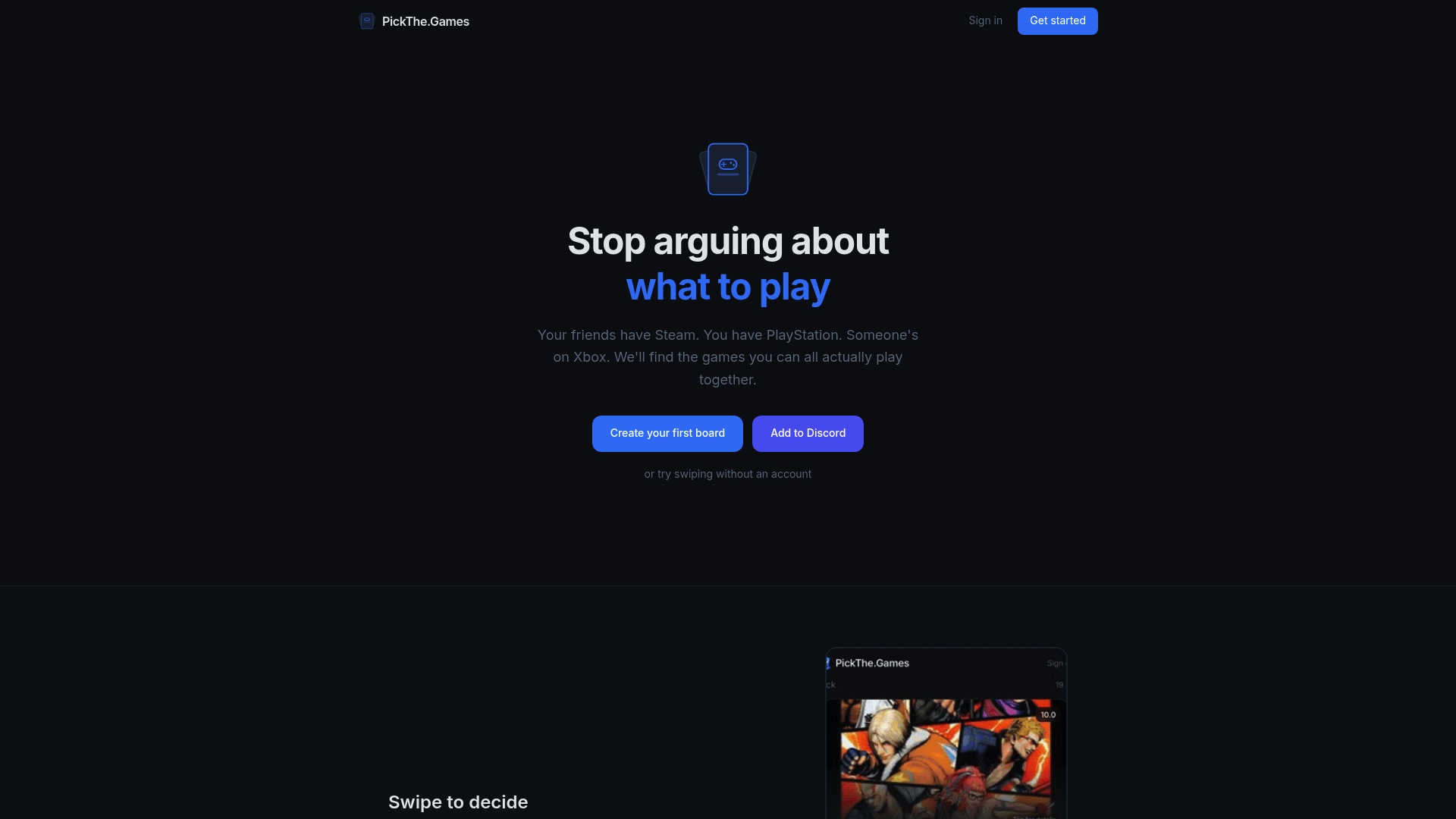
Streamer Mode lets your viewers vote on what you play next through a sharable link, with live leaderboard support built for OBS, so results show up on screen the same way your Twitch or YouTube poll would. It pairs with real-time swiping and voting, a veto system for the group, and a Discord bot for servers that plan sessions off-stream. Features run free, with no paywall gating the voting or the overlay support.
Use PickThe alongside your native polls rather than instead of them: reach for a quick Twitch poll for split-second in-game calls, and bring in PickThe's game voting app when the question is bigger, like deciding tonight's game from a shared library your community actually owns across different platforms. If crossplay is the sticking point, the crossplay compatibility checker settles which titles your mixed-platform audience can actually play together before you even open a vote.
Sources
- How to Use Polls
- How do live polls work? — YouTube Help
- Poll Widget: Create Polls for Twitch & YouTube Chat | Streamlabs
FAQ
How Many Options Can a Live Poll Have?
Twitch allows a small set of options configured in Creator Dashboard, while YouTube caps live polls at two to four choices. Stick to short, clear option text either way, since both platforms display results in a compact card viewers scan quickly.
Can I Run the Same Poll on Twitch and YouTube at Once?
Not natively; each platform's poll system is separate and only tracks votes from its own viewers. You'd need a third-party widget that authenticates and deduplicates users across both platforms, and you should verify that deduplication works before trusting the combined result.
Do Channel Points Make Voting Unfair?
They can skew results toward viewers with more points, so disclose whether extra votes are allowed before the poll opens. Channel Point votes are non-anonymous and non-refundable, which is exactly why announcing the rules upfront avoids disputes afterwards.
What's the Difference Between a Poll and a Prediction on Twitch?
A poll gauges preference with no stake attached, while a Prediction involves committing Channel Points to an outcome. Treat them as separate tools since Predictions carry a real dispute risk that a simple poll doesn't.
Does PickThe.Games Replace Native Stream Polls?
No, it complements them. PickThe.Games handles game-choice voting through Streamer Mode with live OBS leaderboard support, while native Twitch and YouTube polls remain the quicker option for in-the-moment, single-question decisions.