How to show a live vote overlay on your stream right now
How to show a live vote overlay on your stream right now
Add your poll provider's overlay URL as a Browser Source in OBS (or Streamlabs, XSplit, Twitch Studio) and share a join link or chat command so viewers can vote in real time. If you want a streamer-built option with zero setup faff, PickThe.Games Streamer Mode gives you a sharable overlay URL and OBS leaderboard support with admin dock controls, so you manage everything without leaving your streaming software.
*> TL;DR:
>
> - Using a third-party overlay URL offers more control over styling and works seamlessly across multiple streaming platforms.
> - Locking the overlay's size and placing it above other sources prevent scene shifts and ensure consistent display during polls.
> - Running test polls at the streaming resolution helps maintain proper overlay appearance and reveals timing issues before going live.
> - PickThe.Games Streamer Mode automated setup simplifies live voting with built-in real-time results, admin controls, and Discord integration.
> - Troubleshooting common issues involves verifying HTTPS links, refreshing the source, and ensuring backup join methods are available for viewers.
*Table of Contents
- Quick steps: add a live vote overlay to your stream
- Which methods let you show live vote overlays?
- Step-by-step OBS setup and configuration
- Design and readability rules for vote overlays
- PickThe.Games Streamer Mode: the streamer workflow built for this
- Troubleshooting: common problems and fast fixes
- When to use live overlays and how they change engagement
- How PickThe.Games makes live-vote overlays effortless
- Sources
Quick steps: add a live vote overlay to your stream
You don't need to be technical to get this working before your next stream. The whole process, from creating a poll to seeing animated results on screen, takes less time than sorting out your mic levels.
1. Create or launch a poll with your chosen provider and copy the overlay URL, or grab the room code and QR image it generates.
2. Open your broadcasting software (OBS, Streamlabs, XSplit or Twitch Studio) and add a new Browser Source.
3. Paste the overlay URL into the source and name it something you'll recognise mid-show, like "Poll overlay" rather than "Source 4".
4. Position and scale it in a corner that doesn't cover your facecam, chat box or HUD, and check the layer order so it sits above your gameplay capture.
5. Share the join method with viewers, whether that's a link in your chat, a room code on screen, a QR code, or a simple chat command, then start the poll.
6. End the poll and reveal the results. A well-built overlay should auto-hide once voting closes, so it doesn't linger awkwardly on screen.
That's genuinely the whole loop. Most streamers who try this once realise the overlay behaves the same way a twitch poll overlay does, sliding in only while a poll is live and disappearing cleanly when it's done.
Which methods let you show live vote overlays?
Not every workflow suits every stream, and picking the wrong one is why some streamers give up on live voting after one messy attempt. Here's how the main approaches stack up.
- Platform-native polls (Twitch's built-in poll feature, for example) are the lowest-friction option. Twitch generates a popout poll URL you can drop straight into OBS, but customisation is minimal and you're tied to that platform's voting UI.
- Third-party overlay URLs give you far more control over styling and animation, and they work across Twitch, YouTube Live and Facebook Live without caring which platform you're broadcasting to.
- Self-hosted or open-source overlays hand you total branding freedom, but you're now responsible for hosting, uptime and keeping the server running during your show.
- Chat-command voting suits fast-moving, chatty streams where viewers are already typing constantly.
- Room codes and QR joins work better for mobile viewers or audiences watching on platforms without a native chat window, and projects like LivePoll build their whole join flow around this for exactly that reason.
Most streamers land on a hybrid: a third-party or provider-hosted overlay for the visuals, with room-code joining as backup when chat gets too fast to track.
Step-by-step OBS setup and configuration
Getting the overlay to appear is easy. Getting it to appear reliably, without you fumbling between windows mid-stream, takes a bit more care.
1. Get your overlay URL or room code from your poll provider's dashboard. Every credible tool gives you a plain link you can paste elsewhere.
2. Open OBS and add a Browser Source. Name it clearly, paste the URL, and set the width and height to match your overlay's intended card size, not your full canvas.
3. Disable "Shutdown source when not visible" if your provider needs the connection kept alive between polls, and set the refresh rate to match your provider's guidance.
4. Lock the transform once you've placed it. A fixed-size card in a fixed corner stops the overlay from jumping around your scene when a new poll starts.
5. Set up an admin dock. OBS supports custom browser docks, and tools like OpenStreamPoll are built specifically so you can start, stop and monitor polls from a panel inside OBS itself, rather than alt-tabbing to a browser tab while you're meant to be talking to chat. If your provider doesn't offer a dock, a Stream Deck with hotkeys for "start poll" and "reveal results" is the next best thing.
6. Run a private test poll before you go live. Check the animation speed, confirm the numbers update on both a desktop preview and a phone screen, and watch the reveal timing to make sure it doesn't reveal a beat too early or linger too long.
Pro Tip: Run your test poll at the exact resolution you stream at, not your editing monitor's resolution. Overlays that look perfect at 1440p can crop awkwardly once OBS scales them down to 1080p output.Design and readability rules for vote overlays
An overlay that looks great on your monitor but is unreadable on a viewer's phone has failed at its one job. A few rules keep it working for everyone watching.
- Use high-contrast colours and large, bold fonts. If someone glancing at a phone screen can't read the leading option in two seconds, the design has failed.
- Cap your options at three or four. More than that and viewers spend longer parsing the list than actually deciding how to vote.
- Show percentages alongside raw vote counts. Numbers alone feel abstract; percentages give instant context.
- Lock the overlay's card size so it never reflows your scene, an approach OBS overlay tools build in by default precisely to stop facecams and HUD elements shifting mid-poll.
- Favour smooth bar growth and subtle slide-ins over flashing or strobing effects, both for viewer comfort and for anyone photosensitive in your audience.
- Pair colour with text labels and numbers, not colour alone, so colour-blind viewers and screen-reader users aren't left guessing which option is winning.
PickThe.Games Streamer Mode: the streamer workflow built for this
Everything above describes the manual route. Streamer Mode is PickThe.Games' answer for streamers who'd rather spend that setup time actually talking to their audience.
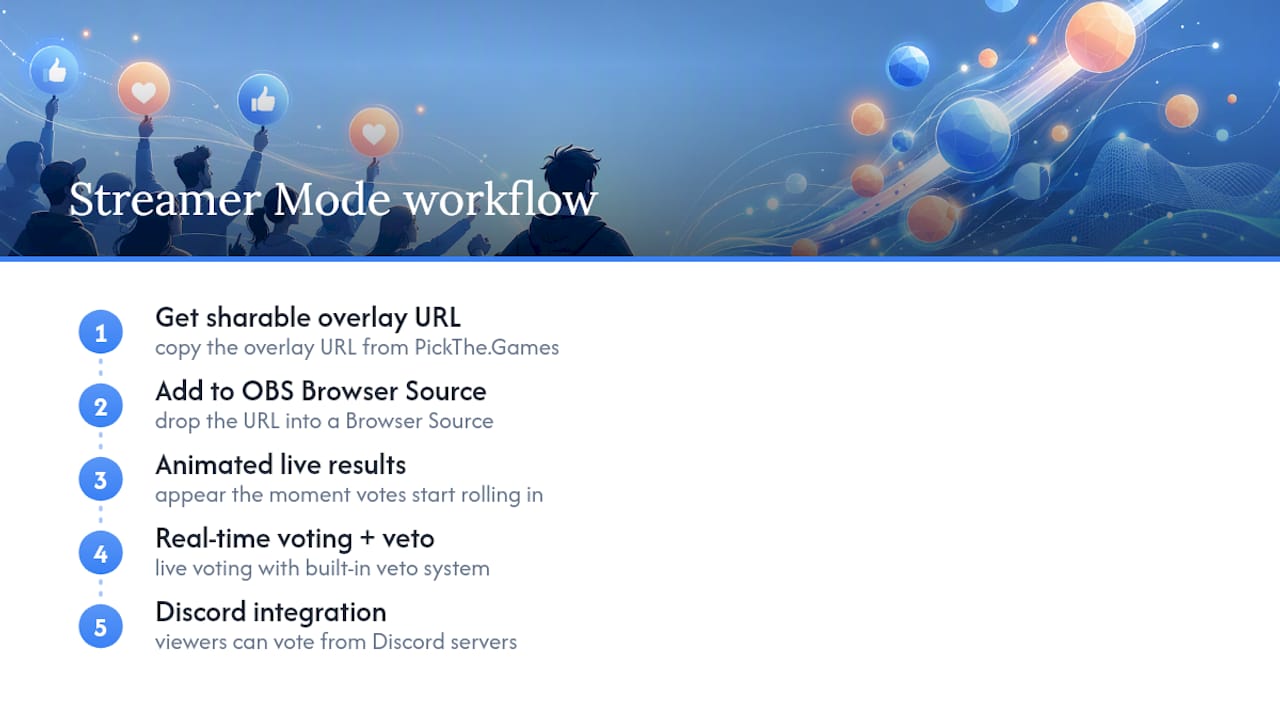
It works exactly like the browser-source workflow you've just read, except the overlay and OBS leaderboard support are already built for you. You get a sharable overlay URL, drop it into a Browser Source, and animated live results appear the moment votes start rolling in. Real-time voting and a built-in veto system keep the process inclusive rather than letting one loud chatter dominate every pick, and Discord integration means viewers coordinating in a Discord server can vote from there too. There's nothing extra to install: the overlay is browser-based, and it supports the same admin-dock control inside OBS that keeps you from alt-tabbing during a poll. Full setup detail lives on the Streamer Mode launch post.
Troubleshooting: common problems and fast fixes
Live voting fails on air more often from small oversights than from anything genuinely broken. Work through these before you assume the tool is at fault.
- Overlay won't load: confirm the URL uses HTTPS and is publicly reachable, not sitting behind a login or a local-only address.
- Votes aren't updating: the underlying connection (often WebSocket or SSE) may have dropped. Refresh the Browser Source, or test on a different network to rule out a firewall block.
- Overlay jumps or resizes your scene: lock the card to a fixed size rather than letting it stretch to fit content.
- Viewers can't find how to vote: always have a backup join method, a short link or QR code, in case your chat command gets buried.
- Self-hosting your own overlay: check CORS settings, confirm hosting uptime, and open the browser console in OBS to spot charting-library errors before you blame the poll data itself.
When to use live overlays and how they change engagement
Overlays earn their place on stream when decisions need to happen fast and often: choosing the next game mode, letting viewers steer a run, or settling split opinions in seconds rather than scrolling chat for two minutes. For smaller or slower-moving chats, a room code or QR join often lifts participation more than a chat command does, simply because it doesn't ask viewers to type anything competitive. For anything higher stakes, a permanent decision, a prize, a genuinely contested outcome, pair the overlay with some form of post-poll verification rather than trusting the raw tally alone.
> — PickThe
How PickThe.Games makes live-vote overlays effortless
Setting up a browser source, admin dock and join method from scratch works, but it's several moving parts to get right before you ever go live. PickThe.Games Streamer Mode collapses that into one workflow: a sharable overlay URL, real-time vote updates, and OBS leaderboard support you drop into a single Browser Source.
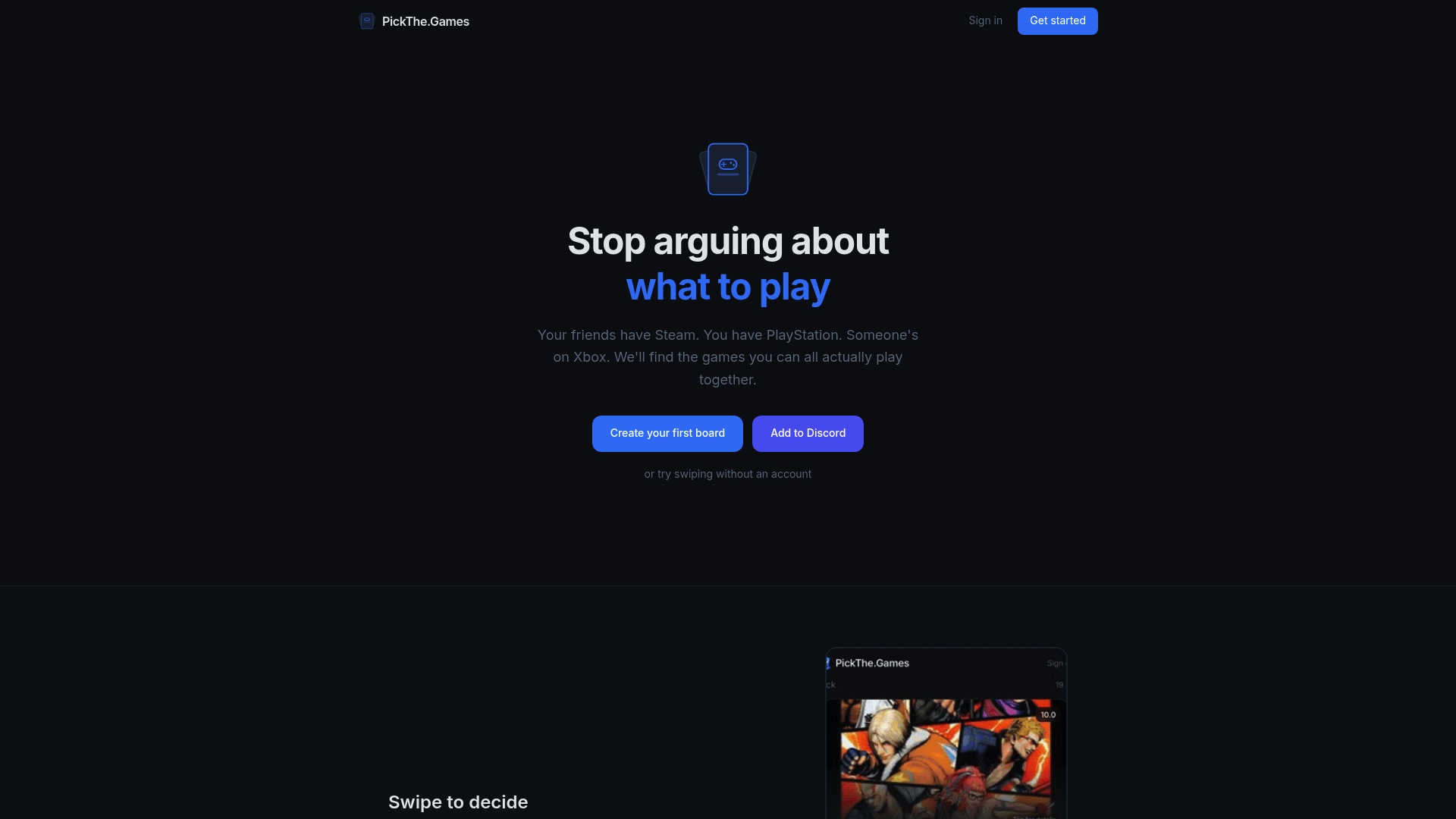
You start free, and there's no install beyond the browser source itself. Once it's running, admin dock controls let you launch, close and reveal polls entirely inside OBS, so you're never fumbling between windows while chat is watching. If you're planning to let viewers pick between specific titles rather than just abstract options, the Game Voting App page shows exactly how that pairs with Streamer Mode, and it's worth browsing multiplayer games for your group while you're there to line up your next on-stream vote.