5 OBS Browser Overlay Settings Streamers Need for Live Voting and Docks
5 OBS Browser Overlay Settings Streamers Need for Live Voting and Docks

A browser overlay in OBS is a web page rendered inside your scene through a Browser Source, showing anything from alert pop-ups to live audience polls. To add one, open Sources, click +, choose Browser, paste your overlay URL (or select a local file), then set the resolution and FPS to match your canvas. Alerts and live voting overlays are the two most common starting points for most of you.
*> TL;DR:
>
> - Most issues with blank overlays stem from hardware acceleration conflicts, resolution mismatches, or overlays not yet triggered during testing.
> - Always test overlay URLs in a browser before adding them to OBS to ensure they load correctly and are not blocked by firewalls or login prompts.
> - Matching the overlay resolution and FPS to your stream settings, typically 1920×1080 at 30 or 60 FPS, optimizes visual clarity and performance.
> - Using Custom Browser Docks allows control panels and poll management directly within OBS, reducing unnecessary window switching during streams.
> - Overlays that rely on websockets or online services require stable internet access and proper network permissions for real-time updates.
*Table of Contents
- How do you set up an OBS browser overlay?
- What overlay types work best in OBS?
- Can you control overlays from inside OBS?
- Why is your browser overlay blank or invisible?
- What's your pre-stream overlay checklist?
- Why overlays are worth the setup time
- Turn overlays into audience votes with PickThe.Games
- Where to read more on browser overlays
- Sources
- FAQ
How do you set up an OBS browser overlay?
Getting a browser overlay working properly is less about creativity and more about getting five settings right. Miss one, and you'll end up staring at a blank rectangle where your alert box should be.
Here's the process from a clean scene:
1. Click the + under Sources and select Browser.
2. Name the source something you'll recognise later, like "Poll Overlay" rather than "Browser 3".
3. Paste the overlay URL your provider gave you, or tick Local File if you're loading an HTML file from your own machine.
4. Set Width and Height to match your canvas, typically 1920×1080 for a 1080p stream.
5. Set FPS to 30 or 60. Animated overlays with smooth motion benefit from 60; static alert boxes rarely need it.
6. Add any custom CSS in the Custom CSS field if you want to tweak fonts, colours, or spacing without editing the source file.
7. Decide on audio: tick Control audio via OBS if the overlay plays sound effects you want mixed into your stream audio.
8. Click OK, then resize and position the source in your scene.
Before you paste that URL into OBS, open it in a regular Chrome or Firefox tab first. According to OBS's own Browser Source documentation, Browser Source runs on the Chromium Embedded Framework, so if a page fails to load or throws a login prompt in a normal browser, it'll do the same inside OBS. Catching that in advance saves you from troubleshooting mid-stream.
What overlay types work best in OBS?
Not every overlay behaves the same way, and knowing what to expect from each type stops you panicking when nothing appears on-screen.
- Alert widgets: hosted URLs from donation or subscription platforms that sit invisible until triggered, then animate briefly before disappearing again.
- Live polls and vote overlays: only visible while a vote is active, added exactly like any other browser source with a URL from the provider's dashboard.
- Scoreboards and animated text: these update through websockets or HTTP requests, so the numbers on screen change without you touching OBS.
- Game-selection and streamer-mode overlays: PickThe.Games' Streamer Mode generates a shareable link your viewers use to vote on what you play next, and the live overlay itself drops straight into OBS as a Browser Source, showing real-time results as votes come in.
Many providers, StreamElements included, follow the same pattern: you copy an overlay URL from their editor and paste it into a Browser Source set to 1920×1080. If your provider differs, the underlying steps rarely change.
Can you control overlays from inside OBS?
You can, and it saves you the awkward window-switching that makes admin work visible on stream. View > Docks > Custom Browser Docks lets you load an admin panel URL directly into the OBS interface, sitting alongside your scene list rather than living in a separate browser tab.
Typical uses include:
- Starting and stopping polls without alt-tabbing out of OBS.
- Managing an alert queue when donations or follows stack up during a busy segment.
- Running a game-selection admin panel to open or close voting on a board.
OBS's browser integration on GitHub documents Custom Browser Docks as a built-in feature, not a plugin bolt-on, which is why the setup is so lightweight.
Pro Tip: Test any admin URL in a normal browser tab first. If it requires a login or exposes controls you didn't intend to be public, fix that before loading it as a dock where a misclick during a live show becomes visible to anyone watching your screen share.Stick to read-only or scoped-permission admin links where your provider offers them. A dock that only lets you view queue status, rather than delete or reset it, is a safer default for busy streams.
Why is your browser overlay blank or invisible?
A blank overlay is usually one of three problems, and none of them mean the source is broken.
1. Hardware acceleration conflicts. Because Browser Source runs on CEF, certain GPU drivers clash with hardware rendering. OBS notes that toggling hardware acceleration off, or passing CEF flags via OBS's shortcut arguments, resolves most black-screen cases.
2. The overlay simply hasn't triggered yet. StreamElements points out that an empty preview is completely normal for alert and poll overlays until something fires them. Use the test buttons on your provider's dashboard rather than assuming the source is faulty.
3. Resolution mismatch. If your overlay's width and height don't match your canvas, elements can render off screen or scale oddly.
For anything relying on websockets, such as live scoreboards, confirm the machine running OBS can actually reach the overlay host and that no firewall is blocking the connection, otherwise the data simply won't refresh.
On performance: OBS recommends ticking "Shutdown source when not visible" for overlays that fire rarely, which frees CPU for encoding instead. Streamers running several browser sources at once often see this shave a noticeable chunk off idle CPU load, since inactive overlays stop rendering entirely rather than sitting in the background.
What's your pre-stream overlay checklist?
A short checklist before you go live catches most overlay disasters before your audience ever sees them.
- Open every overlay URL in a normal browser tab and confirm it loads without errors.
- Check that resolution and FPS in the Browser Source properties match your canvas settings.
- Lock the overlay source in your scene once positioned, so a stray drag mid-stream doesn't shift it.
- Layer overlays above your webcam and gameplay capture, not underneath, or they'll simply never appear.
- Keep a lightweight local HTML version of anything mission-critical, like a subscriber counter, as a fallback if a hosted service goes down.
- Build a minimal backup scene with no overlays at all, so you can switch to it instantly if something breaks live.
Professional streamers generally favour Browser Source over Display Capture for overlays specifically because it isolates the overlay's rendering from the rest of your desktop, cutting down on both CPU overhead and stray visual artefacts.
Why overlays are worth the setup time
Overlays do more than decorate a stream. A poll that visibly updates while votes come in, or an alert that fires the second someone follows, gives viewers a reason to stay past the first few minutes rather than scroll on. That's the gap between a stream that feels like a broadcast and one that feels like a conversation.
We built PickThe.Games' Streamer Mode because voting on what to play next is one of the simplest interactions a stream can offer, and Discord integration means your community can weigh in from chat without ever leaving the app they're already using. Run a small test: turn on a vote overlay for one segment and watch what happens to chat activity. Most streamers are surprised by how much a single interactive element shifts engagement.
> — PickThe
Turn overlays into audience votes with PickThe.Games
You can enable audience voting without asking viewers to leave your stream or open a separate app. Rather than deciding solo what to play next, you hand that choice to chat through a live overlay that updates as votes land in real time.
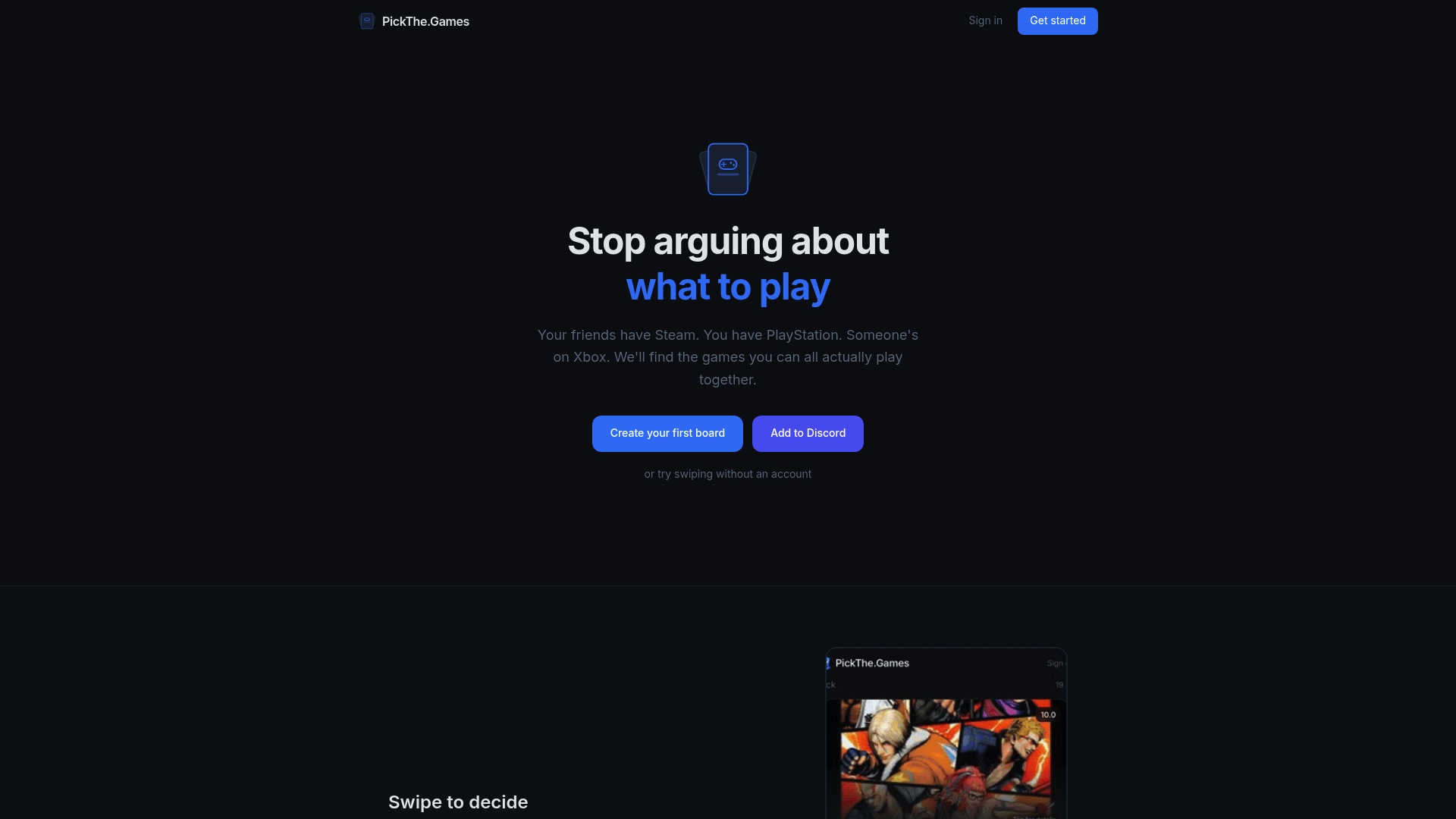
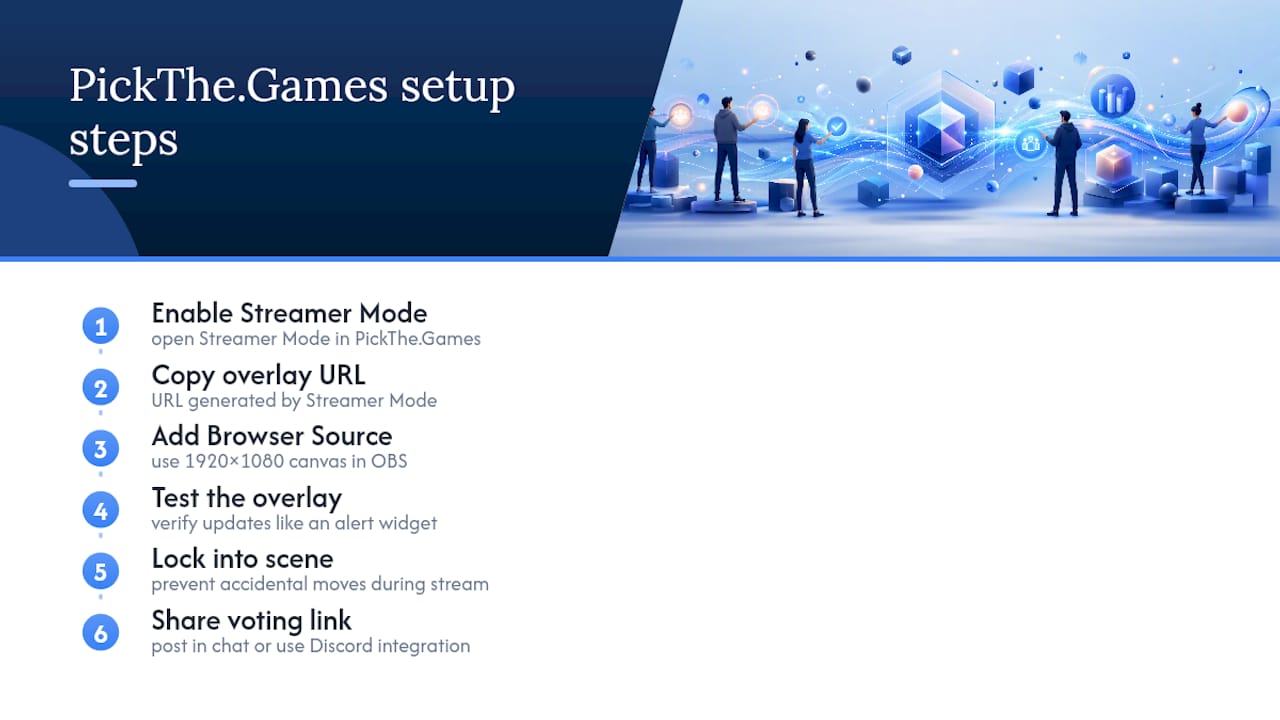
Setting it up follows the same pattern as any other overlay: open Streamer Mode, copy the overlay URL it generates, then add it as a Browser Source in OBS with your usual 1920×1080 canvas settings. Test it once before going live, the same way you would with any alert widget, then lock it into your scene. Viewers vote through a link shared in chat or via the Discord integration, with results visible on your overlay as swipes come in, no paywall, and no separate login for your audience.
This setup fits best when the moment calls for genuinely shared choice, deciding which party game to boot up next, or settling an argument about which crossplay title actually works across everyone's platforms. A dedicated alert widget still makes more sense for donation pop-ups or follower notifications, that's not what Streamer Mode is built for. For picking what gets played next, though, start a board and try Pickthe on your next stream.
Where to read more on browser overlays
The instructions above draw on a handful of primary sources worth bookmarking if you're troubleshooting further:
- OBS's official Browser Source documentation covers properties, CEF flags, and hardware acceleration in full detail.
- StreamElements' overlay guide walks through getting overlay URLs from a provider dashboard.
- OBS's browser integration repository on GitHub has the technical notes behind Custom Browser Docks and CEF behaviour.
When in doubt, test the overlay URL in a standard browser and check for CEF-related flags before assuming OBS itself is at fault.
Sources
- Browser Source | OBS
- Overlays: The Complete Guide (Gallery, OBS Setup, Widgets, Alerts & Data) – StreamElements
FAQ
How do I show a web browser in OBS?
Add a Browser Source through Sources > + > Browser, then paste the web page's URL and set the width, height, and FPS to match your canvas.
How do I put an overlay on OBS?
Add it as a Browser Source using the overlay's URL or a local HTML file, matching resolution and FPS to your stream settings, then position and lock it in your scene.
How do I capture a browser window in OBS?
Use a Browser Source rather than Window Capture for web-based overlays. It renders the page directly through CEF instead of screen-capturing an open browser window, which avoids extra CPU load and visual glitches.
Why does my browser source show a blank screen?
It's usually a hardware acceleration conflict, a resolution mismatch, or simply an overlay waiting for its trigger, such as a poll that hasn't started yet. Test the URL in a normal browser and use your provider's test buttons to confirm it's working before assuming OBS is at fault.
Can I use PickThe.Games as a live poll overlay in OBS?
Yes. PickThe.Games' Streamer Mode generates an overlay URL you add as a standard Browser Source, letting your audience vote on what you play next with results updating live on screen.