Streamers: Let Chat Pick Games on Twitch, Discord and PickThe.Games
Streamers: Let Chat Pick Games on Twitch, Discord and PickThe.Games

The fastest way to let chat pick the game is a native Twitch poll if you have Affiliate or Partner status, a Discord poll or emoji reaction vote if your crowd lives on your server, or a dedicated voting tool when your group spans multiple platforms or you want the result on your stream overlay. Which one you reach for depends on where your audience already is and whether you need results shown live.
*> TL;DR:
>
> - Twitch native polls are quick to set up but limited to Affiliates and Partners, with only two to five options and a maximum 10-minute timer.
> - Discord polls via built-in creator or emoji reactions suit longer, informal, or small-group decisions, with durations up to two weeks supported.
> - Dedicated tools like PickThe.Games enable cross-platform voting, automatically checking game compatibility and providing real-time, shareable results for large or mixed groups.
> - Proper poll design involves limiting options to prevent vote splitting, matching timer length to chat activity, and launching during natural breaks for better engagement.
> - Troubleshooting common issues includes refreshing overlays, reading options aloud on mobile, restricting bot permissions, and re-running polls if results are disputed.
*Table of Contents
- Quick methods overview: pros, cons and when to use each
- How to set up a Twitch poll to let chat pick the next game
- How to set up voting on Discord: emoji reactions, the built-in poll creator and bots
- Using dedicated voting tools and PickThe.Games workflow
- Design and timing best practices for effective game-choice polls
- Troubleshooting and moderation: avoid abuse and fix common issues
- A short editorial view: polling as engagement strategy
- Try PickThe.Games: quick steps and links to get started
- Official platform docs and best practice reads
- Sources
- FAQ
Quick methods overview: pros, cons and when to use each
Each option solves a slightly different problem, so picking the right one saves you a scramble mid-stream.
Twitch's built-in polling is the quickest to launch because it lives right inside the chat box, but it's restricted to Affiliates and Partners and caps you at 2 to 5 answers with a 1 to 10 minute timer. Discord handles longer decisions well: its poll creator and emoji reactions work for anyone with server access and suit scheduled game nights where you want input over hours rather than minutes. Third-party bots and dedicated apps earn their place when native tools fall short.
- Twitch native polls: instant and simple, but limited to monetised accounts and short timers.
- Discord polls and emoji reactions: flexible durations, good for planned sessions, works for any server.
- Third-party bots and voting apps: needed for mobile streaming, stream overlays, weighted votes or checking whether a mixed-platform group can actually play the same game.
If your group is entirely on one platform and you just need a quick show of hands, the native tools will do the job. If you're streaming to viewers on different consoles and PCs, or you want the vote visible on screen, a dedicated tool closes that gap.
How to set up a Twitch poll to let chat pick the next game
Launching a poll on Twitch takes under a minute once you know the path.
1. Type /poll in your chat box, or open Stream Manager and select Manage Poll.
2. Enter your question and between two and five answer options, keeping each within the character limit.
3. Set a timer, Twitch supports 1 to 10 minutes, and launch the poll.
4. Watch votes tally live in the poll card, then read the winning option to chat once it closes.
Timer length should match your chat's pace. A fast-moving chat suits a 1 to 2 minute window, while a casual one benefits from 3 to 5 minutes, giving lurkers time to catch up and vote. Prewriting a few poll templates before you go live also means you're not typing options under pressure while viewers wait.
If you want Channel Points or Bits to grant extra votes, toggle that in the poll settings before launch, and if you use a moderation bot, it can trigger polls automatically once granted the channel:manage:polls scope. To show the result on screen rather than leaving it buried in chat, add the Twitch poll overlay as a browser source in OBS, or use a third-party widget if you want a custom look.

How to set up voting on Discord: emoji reactions, the built-in poll creator and bots
Discord gives you two native routes, plus bots for anything more elaborate.
The emoji reaction method is the simplest: post a message listing your game options, react to each one yourself with a different emoji, then ask members to react with their pick. Keep the emoji obvious and the options short so nobody double-votes by accident, and count reactions manually or with a bot once the window closes.
The built-in poll creator is more structured. Open the Add media (+) icon in the message bar and select Create Poll. Discord's Polls feature supports up to 10 answer options and durations from 1 hour to 2 weeks, so you can run a quick same-day vote or a week-long shortlist for a bigger game night.
- Emoji reactions work for small groups and quick, informal choices.
- Create Poll suits anything needing multiple options, a set duration or a multiple-answer setting.
- Bots earn their keep in larger servers, for exportable results or anonymous voting, or when you want a scheduled recurring poll.
Bringing a Discord result to your stream just means reading it out, screen-sharing the poll card, piping it through an OBS browser source, or Pickthe so your Discord members and Twitch viewers vote in the same place.
Using dedicated voting tools and PickThe.Games workflow
Native polls work well until your group spans different consoles, PCs and platforms, at which point knowing who voted for what doesn't tell you whether everyone can actually play the winning game together. That's the gap a dedicated tool closes.
PickThe.Games is built around swipe voting: everyone swipes through a shared board of games, the platform checks crossplay compatibility across the group automatically, and real-time votes tally as people swipe. A veto system lets anyone rule out a game nobody wants, Discord integration brings the board straight into your server, and Streamer Mode adds a shareable link with a live overlay for OBS so viewers watching your stream vote alongside anyone in Discord.
A typical workflow looks like this:
- Create a board and add the games you're considering, or let the crossplay checker filter to what your group can actually run together.
- Share the invite link in chat or Discord so viewers and server members swipe at the same time.
- Turn on Streamer Mode to add the overlay to your stream, or drop the bot into Discord to post live results.
The main advantage over a manual poll is speed: instead of a back-and-forth debate about who owns what, the board sorts it in minutes and keeps everyone talking while it happens rather than staring at a spreadsheet.
Design and timing best practices for effective game-choice polls
A poorly designed poll can hand you a result nobody wanted, so a few rules make the outcome usable.
1. Keep it to two to five options on Twitch and no more than ten on Discord, more than that just splits the vote and confuses people.
2. Match the timer to your chat's energy: 1 to 2 minutes for a fast chat, 3 to 5 for a casual one, and longer windows on Discord for anything asynchronous.
3. Decide whether you want a single vote per person or a "chaos" model allowing repeat votes, the choice depends on whether you want tight control or maximum engagement.
4. Launch polls at natural breaks such as the end of a match or a loading screen rather than mid-action, and repeat the question out loud so late arrivals don't miss it.
Make the poll visually distinct from whatever's on screen already, confusing it with the game UI or leaving the timer unclear tends to tank participation. If you want a bit more detail on picking options that are genuinely different from each other rather than three variations on the same game, there's a longer guide on choosing game night options worth a look.
Troubleshooting and moderation: avoid abuse and fix common issues
Live votes fail in predictable ways, so knowing the fix in advance saves a dead-air moment.
- Overlay not updating: refresh the browser source in OBS, most freezes are a stale cache rather than a broken poll.
- Mobile chat can't see the poll: some viewers on mobile apps miss poll cards entirely, so read the options out loud as backup.
- Bot spam or vote flooding: scope any bot's permissions tightly, restrict poll commands to trusted mods, and set rate limits on repeat commands.
- Disputed results: fall back to a re-poll, switch to emoji reactions, or point everyone to a PickThe.Games board link, which gives you a single authoritative count.
Delegate poll-launching to a couple of trusted moderators rather than doing everything yourself, it means one glitch on your end doesn't stall the whole vote.
A short editorial view: polling as engagement strategy
Letting chat pick the game works because it turns viewers into co-creators rather than spectators, and that shift tends to raise the moments people remember and come back for. The mistake is running polls constantly until they become background noise nobody bothers voting on. Save them for genuine forks in the session, keep the stakes visible, and the vote itself becomes the story rather than a distraction from it.
> — PickThe
Try PickThe.Games: quick steps and links to get started
If your group can't agree because half of you are on console and half on PC, that's the exact problem. This type of tool can solve cross-platform voting issues without ads or paywalls standing between users and a decision. Instead of guessing who owns what, everyone swipes, the crossplay check sorts out what's actually playable together, and the result shows up on your stream overlay or in Discord within minutes.
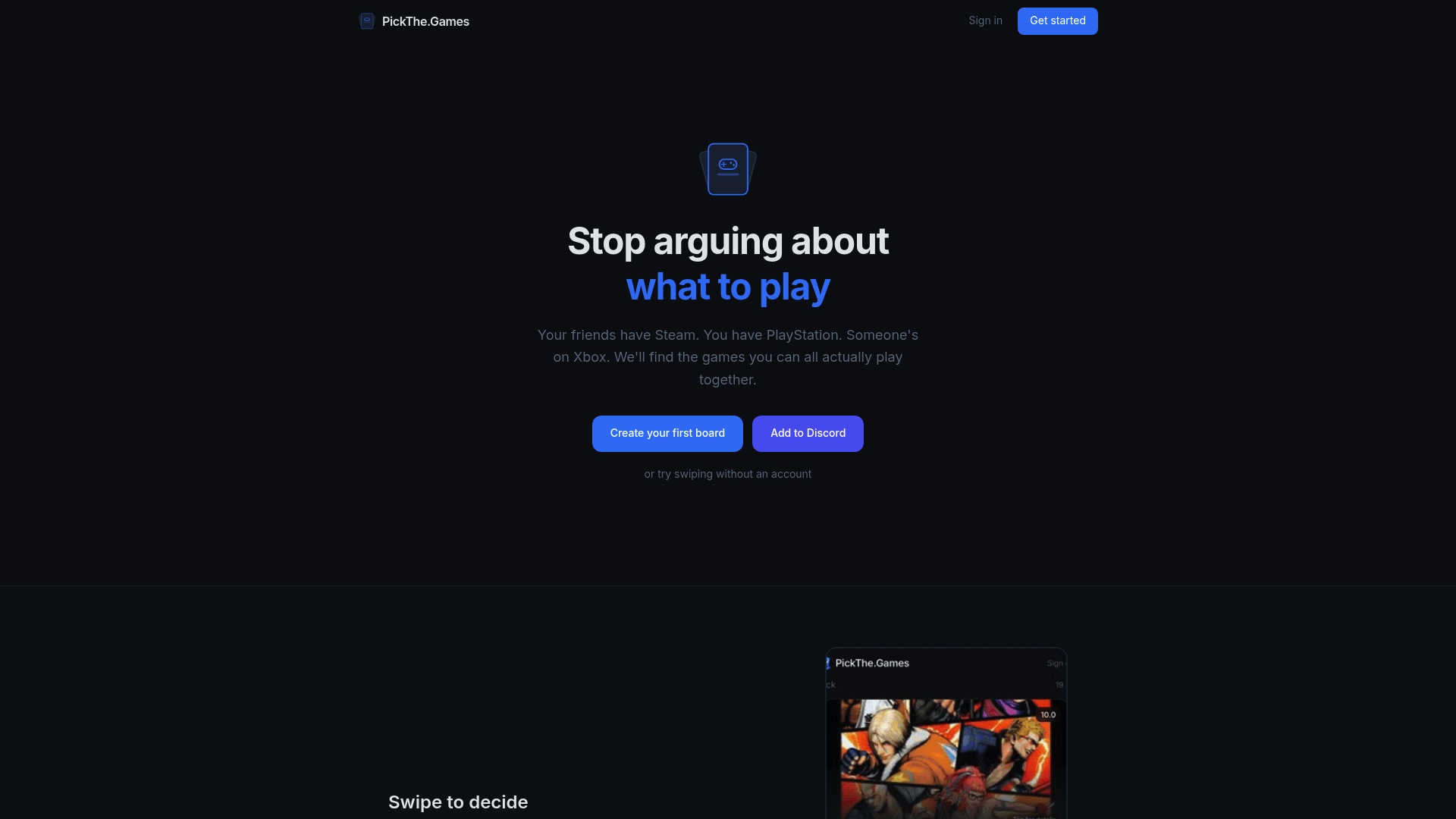
A few ways to try it tonight:
- Open the game voting app and create a board with the games your group is considering.
- Share the invite link in your Discord server or drop it in chat during your stream.
- Turn on Streamer Mode for the OBS overlay, or run a crossplay check first if you're not sure what everyone can actually join.
Every feature is free, so there's nothing stopping you testing it with a small group before your next scheduled session, and if you're stuck on genre, the party games list is a solid starting shortlist for mixed groups.
Official platform docs and best practice reads
Sources on native polling, moderation and PickThe.Games features used throughout this guide.
Sources
- Polls FAQ — Discord support
- How to use polls — Twitch help
- Twitch polls in 2026: Rules + Step‑by‑Step guide | StreamRise
- Interactivity through consensus: best practices for polling and voting in extensions — Muxy
FAQ
How many options can a Twitch poll have?
A Twitch poll supports between two and five answer options with a timer of 1 to 10 minutes, and only Affiliates and Partners can launch one. Moderators can trigger polls too if the broadcaster has enabled that permission.
Can I run a poll on Discord without a bot?
Yes, Discord's built-in Create Poll tool supports up to 10 options and durations from 1 hour to 2 weeks, accessed through the Add media icon in the message bar. Emoji reactions work as an even simpler alternative for small groups.
How do I show a live vote on my stream?
Add the native Twitch poll overlay as a browser source in OBS, or use a Streamer Mode overlay from a voting tool if your audience is voting across Discord and chat at the same time. Either method keeps the result visible without you reading it out manually.
What's the best way to let a mixed-platform group vote on a game?
A dedicated voting tool that checks crossplay compatibility is the most reliable route, since a native poll will happily crown a game that half the group cannot actually join. Pickthe runs the compatibility check alongside the vote so the winning game is one everyone can play together.