Is Fortnite crossplay? How to play across every device
Is Fortnite crossplay? How to play across every device

Yes, Fortnite is crossplay by design. Link a single Epic Games account and you can drop into the same match with friends on PC, PlayStation 4/5, Xbox One/Series X|S, Nintendo Switch, and Android. iOS and macOS users can still join via cloud streaming, though the native client is no longer available due to the ongoing Apple/Epic dispute.
Here is what to expect at a glance:
- Crossplay is on by default for every account, across every supported platform.
- PlayStation and Xbox are the only consoles where you can toggle crossplay off, via Account and Privacy settings.
- PC, Nintendo Switch, and Android have no in-game option to disable crossplay.
- iOS and macOS require a cloud streaming service (such as GeForce NOW or Xbox Cloud Gaming) to access Fortnite at all.
- Cross-progression works when all your platform accounts are linked to one central Epic Games account.
Key takeaways
Fortnite crossplay works across PC, PlayStation, Xbox, Switch, and Android by default, and a single linked Epic Games account is what keeps your progress and friends list unified across all of them.
| Point | Details |
| --- | --- |
| Crossplay is on by default | No setup needed; all supported platforms join the same matchmaking pool automatically. |
| Link your Epic Games account | Connect every platform account at epicgames.com to unlock cross-progression and cross-platform friends. |
| Console toggle available | PlayStation and Xbox can disable crossplay via Account and Privacy; PC, Switch, and Android cannot. |
| Xbox has a system override | Console-level privacy settings on Xbox can block crossplay even when the in-game toggle is on. |
| Keep crossplay on for healthy queues | Disabling it can extend wait times significantly and restrict available game modes. |
| Pickthe checks compatibility fast | Use the crossplay compatibility checker to confirm which games your whole group can play before you commit. |
Table of Contents
- Is Fortnite crossplay supported on every platform?
- How to enable or disable Fortnite crossplay on consoles
- How to link your Epic Games account and add friends across platforms
- What cross-save and cross-progression cover in Fortnite
- Platform-specific limitations, voice chat, and input matchmaking
- Why Epic keeps crossplay on by default
- Common crossplay problems and how to fix them
- Crossplay is worth keeping on for most players
- Pickthe helps your group find the right game to play together
- Sources
Is Fortnite crossplay supported on every platform?
Fortnite's crossplay support covers most major platforms, though a couple of notable exceptions apply. Supported platforms:- Windows PC
- PlayStation 4 and PlayStation 5
- Xbox One and Xbox Series X|S
- Nintendo Switch
- Android
- iOS: Native Fortnite was removed from the App Store following the Apple/Epic legal dispute. Access is possible through cloud streaming services, which may introduce latency differences and limited feature parity.
- macOS: The native Mac client has not received updates in line with the main game. Mac players typically use cloud streaming to reach the same matchmaking pool.
| Platform | Crossplay available | Notes |
| --- | --- | --- |
| Windows PC | Yes | Cannot disable crossplay in-game |
| PlayStation 4/5 | Yes | Toggle available in Account and Privacy settings |
| Xbox One / Series X|S | Yes | Toggle available; system privacy settings can override |
| Nintendo Switch | Yes | Cannot disable crossplay in-game |
| Android | Yes | Cannot disable crossplay in-game |
| iOS | Cloud only | Native client removed; use GeForce NOW or Xbox Cloud Gaming |
| macOS | Cloud only | Native client outdated; cloud streaming recommended |
One thing worth knowing: PC, Switch, and Android players are always in the shared pool. If your group spans those platforms, crossplay is simply on and there is nothing to configure.
How to enable or disable Fortnite crossplay on consoles
Crossplay is enabled by default for all accounts, so most players never need to touch a setting. If you do want to turn it off on a console, here is how.
Toggling crossplay on PlayStation (PS4 / PS5)
1. Launch Fortnite and open the Lobby.
2. Press the Menu button to open the main menu.
3. Go to Settings, then select Account and Privacy.
4. Scroll to Gameplay Privacy.
5. Find Allow Cross Platform Play and set it to Yes (on) or No (off).
6. Save and exit the menu.
Toggling crossplay on Xbox
1. Launch Fortnite and open the Lobby.
2. Open Settings, then go to Account and Privacy.
3. Find Allow Cross Platform Play and toggle it on or off.
4. Important: Xbox also has a system-level cross-network privacy setting. If crossplay still fails after the in-game toggle, head to your Xbox console's Settings → Account → Privacy and Online Safety → Xbox Privacy and confirm that cross-network play is permitted there. Xbox's own support page explains exactly which options to check, because the console-level setting can override whatever Fortnite has set in-game.
Nintendo Switch, PC, and Android
There is no in-game option to disable crossplay on these platforms. Players on Switch, PC, and Android are always matched within the shared pool.
Pro Tip: Keep crossplay enabled whenever you can. Turning it off on PlayStation or Xbox shrinks your matchmaking pool significantly, which can push queue times up and lock you out of certain game modes entirely.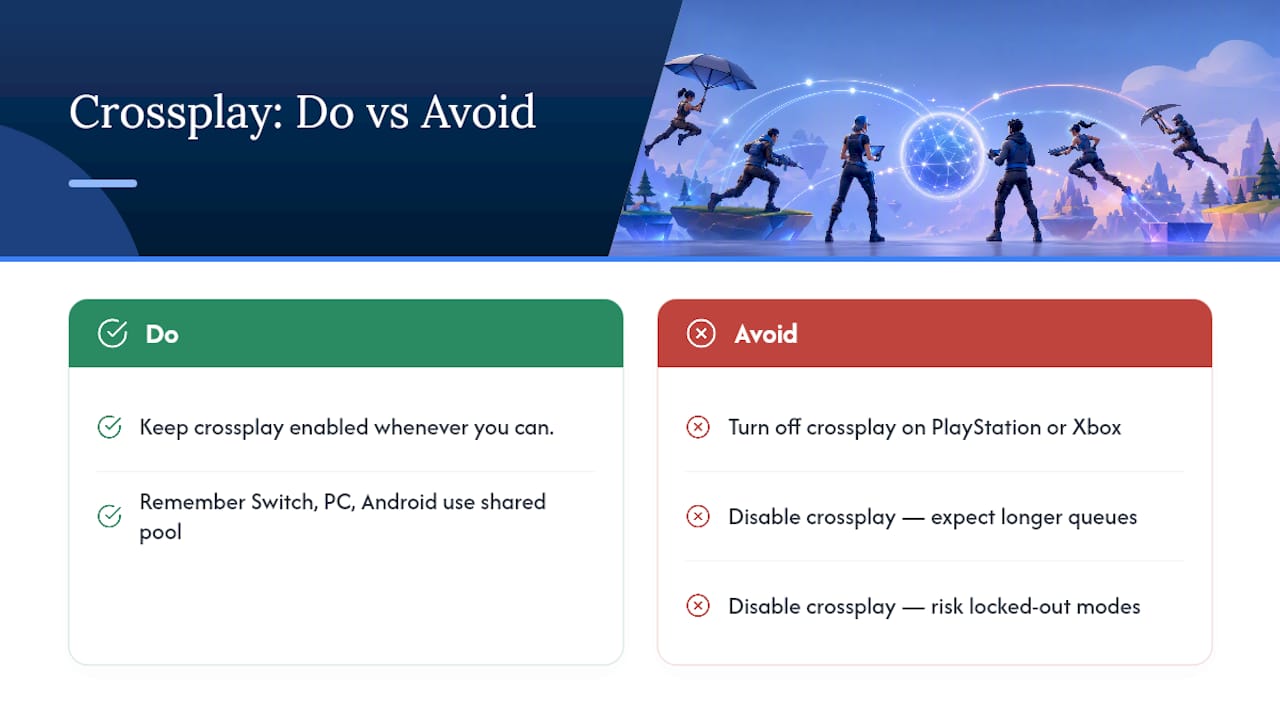
How to link your Epic Games account and add friends across platforms
The Epic Games account is the backbone of Fortnite crossplay. Without one, your progress stays locked to a single platform and you cannot add friends from other systems.
Setting up and linking your Epic Games account
1. Visit epicgames.com and sign in or create a free account.
2. Once logged in, go to your Account page and select Connected Accounts (or Apps and Accounts depending on your region).
3. Choose the platform you want to link: PlayStation Network, Xbox, Nintendo, or Google (for Android).
4. Follow the on-screen prompts to authorise the connection. You will need to sign in to that platform account during the process.
5. Repeat for every platform you play on. All linked accounts feed into the same Epic account, which is what carries your skins, battle pass progress, and stats.
If you are switching from console to PC, the console-to-PC multiplayer guide on Pickthe walks through exactly how to keep your group together during that transition.
Adding friends across platforms
Cross-platform friend requests do not use PlayStation or Xbox friend lists. They go through Epic's own social system.
- Open the Social menu in the Fortnite lobby (the icon that looks like a person with a plus sign).
- Select Add Friends and type your friend's Epic Games Display Name exactly as it appears on their account.
- Send the request. Your friend accepts it from their own Social menu, regardless of which platform they are on.
- Once accepted, they appear in your Epic friends list and you can invite them to your party directly.
What cross-save and cross-progression cover in Fortnite
Linking your platform accounts to a single Epic Games account unlocks cross-progression, meaning your inventory and progress follow you between devices. Here is what transfers:
- Cosmetics and skins purchased or earned on any platform
- Battle Pass progress and any XP or challenges completed
- Unlocked items from previous seasons
- Stats and match history
- V-Bucks purchased through Epic's own store (not platform stores)
A few things do not transfer cleanly, and it is worth knowing before you switch devices:
- V-Bucks bought through the Nintendo Switch eShop are sometimes restricted to that platform due to Nintendo's store policies. Check Epic's current policy before spending, as this has changed over time.
- Platform-specific store purchases (items bought via PlayStation Store or Xbox Store rather than the in-game Epic store) may carry restrictions.
- Mobile cloud saves are tied to your Epic account, so as long as the account is linked, your inventory is accessible. However, iOS players using cloud streaming may find certain store features unavailable depending on the streaming service.
The short version: buy V-Bucks and cosmetics through the in-game Epic store wherever possible, and you will have the fewest compatibility headaches.
Platform-specific limitations, voice chat, and input matchmaking
Crossplay in Fortnite is broad, but it is not entirely uniform across every device and situation.
Key limitations to be aware of:- iOS: No native client. Cloud streaming works but introduces variable latency and may not support all in-game features, including certain store functions.
- macOS: The native Mac client is outdated and does not connect to the current matchmaking pool reliably. Cloud streaming is the practical route.
- V-Bucks and store anomalies: Platform-store V-Bucks (especially Nintendo Switch) can be restricted to that platform. This does not affect crossplay itself, but it does affect how you spend currency across devices.
- Older Mac clients: Community guides note that the legacy Mac build has not kept pace with the main game's updates, which can cause version mismatches that prevent joining cross-platform lobbies.
Voice and text chat across platforms
Voice chat works across platforms in Fortnite, but it requires a few things to line up:
- In-game voice chat must be enabled in Fortnite's audio settings.
- Platform microphone permissions must be granted. On PlayStation, check your console's privacy settings. On Xbox, verify that your account's communication preferences allow voice with non-friends.
- Party voice versus match voice are separate channels. If your group is in a cross-platform party, use the party voice channel rather than the match channel to avoid hearing strangers.
As the Pixel Twelve crossplay guide notes, voice and text chat across platforms can require checking both in-game settings and platform-level permissions before everything connects cleanly.
> Input-based matchmaking: Fortnite separates controller players from mouse-and-keyboard players in certain modes. If you are on PC using a controller, you may be matched with console players rather than PC keyboard users. This is intentional, and it means a mixed group (some on controller, some on keyboard) could end up in different skill brackets within the same lobby. Worth knowing if your group is competitive.
Why Epic keeps crossplay on by default
Epic's decision to enable crossplay by default is a matchmaking decision as much as a design one. Fortnite's player base is spread across many platforms, and keeping them in a single pool is what makes lobbies fill quickly and modes stay available around the clock.
When crossplay is on, the game draws from every supported platform simultaneously, which keeps queue times short and ensures that less popular modes (like certain limited-time events or lower-traffic regional servers) still have enough players to run. Turning crossplay off fragments that pool, and the impact is felt most sharply in off-peak hours or in niche modes where the platform-specific player count alone may not be enough to fill a lobby.
> Queue time impact: Disabling crossplay on consoles can push matchmaking wait times up considerably, with anecdotal reports of waits extending by 10–20 minutes during off-peak hours. Epic's own guidance flags that turning it off may restrict available game modes.
For casual and social players, there is almost no reason to disable crossplay. The competitive argument for turning it off is more nuanced, and the perspective section below covers that directly.
Common crossplay problems and how to fix them
Most crossplay failures come down to account linkage or privacy settings, not platform servers. Work through these steps before assuming something is broken on Epic's end.
Friends not appearing or party invites failing
1. Confirm you are searching by your friend's Epic Games Display Name, not their PlayStation or Xbox username.
2. Ask your friend to check which Epic account their platform is linked to. Two accounts from different sign-in methods is the most common cause of missing friends.
3. Check that both players are on the same game version. A pending update on one platform can prevent party joins.
4. On Xbox, verify the system-level cross-network play settings are not blocking the connection.
5. Restart the Fortnite client on both sides and try the invite from the Epic Social tab rather than a platform party invite.
Crossplay enabled but cross-platform matches still not working
1. On PlayStation: re-check Account and Privacy → Gameplay Privacy → Allow Cross Platform Play is set to Yes.
2. On Xbox: check both the in-game toggle and the console's Privacy and Online Safety settings. The console setting overrides the game.
3. Clear cached login tokens by signing out of Fortnite completely, restarting the console, and signing back in.
4. Verify the Epic account linked to your platform at epicgames.com to confirm it is the correct one.
Pro Tip: When contacting Epic Support, include your platform, your Epic Display Name, the steps you have already tried, and the exact error message if one appeared. This cuts resolution time significantly compared to a vague report.Crossplay is worth keeping on for most players
The competitive fairness debate around crossplay is real, but it is often overstated for the average player. Here is how to think about it.

For casual and social players, crossplay is the right call. It keeps your group together regardless of what everyone owns, fills lobbies faster, and means you are never stuck waiting because three of your friends are on Switch and two are on PC. The Fortnite crossplay page on Pickthe gives a clear breakdown of which platforms connect, which is useful when your group is figuring out who can play with whom before you even launch the game.
For competitive players who want to limit crossplay exposure, the options are narrower than many guides suggest:
- Console players can disable crossplay via Account and Privacy settings, but accept longer queues and potential mode restrictions.
- Input-based matchmaking is the more targeted lever: if you play on PC with a controller, you are already being matched differently to keyboard players.
- Platform parties (grouping with friends on the same platform) do not remove you from the shared pool, but they do give you a consistent communication setup.
The honest take: crossplay off is a meaningful choice only for console players in ranked or competitive modes where the controller-versus-keyboard gap feels material. For everyone else, the queue cost outweighs the benefit.
Pickthe helps your group find the right game to play together
Deciding what to play is often harder than the game itself, especially when your group spans PlayStation, Xbox, PC, and Switch. Pickthe's crossplay compatibility checker tells you instantly which games your whole group can play together, based on the platforms everyone actually owns.

Relevant features for crossplay groups:
- Crossplay compatibility checker: enter your group's platforms and see which games work for everyone.
- Group voting: everyone swipes through game suggestions and the best match rises to the top.
- Discord integration: run the whole session from your Discord server without switching apps.
- Platform filtering: narrow results by genre, including action multiplayer games similar to Fortnite.
Head to Pickthe and run a compatibility check before your next session. It takes about two minutes and saves the usual twenty-minute debate.
Sources
- Allthings
- Is Fortnite cross platform? List of platforms supported | ONE Esports
- Multiplayer and cross-network play settings - Xbox Support