Enable Crossplay Fast: 6 Steps for Mixed-Platform Groups
Enable Crossplay Fast: 6 Steps for Mixed-Platform Groups

Crossplay is almost always switched on inside the game itself, under Settings → Gameplay, Online, or Account & Network, but that toggle is only half the job. Most titles also need you to link an external account (Epic, Activision, Battle.net, Larian) before crossplay actually works, and some PC or mobile versions won't let you turn it off at all. Sort the platform side first, then the in-game side, and you'll save yourself a wasted evening.
*> TL;DR:
>
> - Most games require linking an external account like Activision or Battle.net before crossplay can function, especially on PC or mobile platforms.
> - Parental controls, account linking issues, or network restrictions are common reasons for crossplay toggle problems, and they require careful troubleshooting.
> - Enabling crossplay shortens matchmaking times and allows cross-platform friends to join, but may also pair controller players with mouse-and-keyboard users in casual modes.
> - Crossplay settings vary by platform, with some consoles like Nintendo Switch having permanently enabled options, and others requiring in-game toggle adjustments.
> - Using a compatibility checker before game night helps ensure the entire group can play the same titles across different platforms, saving time and frustration.
*Table of Contents
- How do you enable crossplay step by step?
- Where's the crossplay setting on each platform?
- Why is my crossplay toggle greyed out or not working?
- What actually changes once crossplay is switched on?
- How Pickthe helps you skip the compatibility guesswork
- Managing friend lists and party invites across platforms
- Do controls and gameplay feel different when crossplay is on?
- What privacy and safety settings should you check before enabling crossplay?
- Does crossplay change your voice chat settings?
- How do you turn crossplay off completely?
- Which games handle crossplay differently, and why?
- A pre-game night checklist worth running every time
- Skip the setup guesswork with a compatibility check
- Sources
How do you enable crossplay step by step?
Every game phrases things slightly differently, but the sequence is the same across almost all of them. Follow this order and you'll get crossplay live before your group starts asking why nobody can see each other.
1. Check your platform account first. Sign into your Xbox, PlayStation, or Nintendo account and confirm your privacy or online safety settings allow cross-network play. This sits above the game and can silently block everything downstream.
2. Open the game and find the toggle. Head to Settings → Gameplay, Online, or Account & Network and switch on Allow Crossplay or Enable Cross-Platform Play. This is the standard path the Fortnite support pages describe, and most modern titles follow a near-identical structure.
3. Link the required external account. Games such as Call of Duty and Overwatch need a linked Activision or Battle.net account before crossplay and friend lists function properly.
4. Add friends through that linked system, not just your console's native friends list, since cross-platform invites usually route through the publisher account.
5. Restart the game if the toggle doesn't seem to stick, then send a test invite to confirm it worked.
6. Look for the proof. A crossplay lobby usually shows platform icons next to player names, which is your confirmation that everything is linked correctly.
Pro Tip: Screenshot your friend code or linked account ID before game night. Many "crossplay isn't working" messages in group chats come down to someone typing the wrong username under pressure.Where's the crossplay setting on each platform?
The core idea is universal, but the exact menu path shifts depending on where you're playing. Here's the quick version for each.
- PlayStation: the toggle usually lives inside the game's own settings menu rather than at console level, though some titles add a secondary confirmation screen. PlayStation's matchmaking will often keep you in a same-platform pool by default until you flip the in-game switch, so don't assume it's on just because a friend is inviting you.
- Xbox and the Xbox PC app: crossplay depends on your Xbox privacy and online safety settings as much as the in-game menu. Console-level restrictions can override anything you set inside the game itself, which is the single most common reason a toggle appears greyed out.
- Nintendo Switch: the option typically sits under the same Gameplay or Online menu as everywhere else, but a fair number of Switch titles ship with crossplay permanently on and no way to disable it, since the platform's smaller player base makes opting out impractical for matchmaking.
- PC (Steam, Epic, Battle.net): account linking is usually mandatory rather than optional here. Overwatch requires a linked Battle.net account for console players, and PC players in several major shooters simply cannot opt out of crossplay at all, a limitation Beebom's Fortnite crossplay guide also confirms.
If you're rounding up a squad specifically for Apex Legends, that mandatory PC crossplay is worth knowing before invites go out, since it changes how you'll want to structure your party.
Why is my crossplay toggle greyed out or not working?
Nine times out of ten, a stuck toggle traces back to one of four things. Work through them in this order rather than guessing.
- Parental controls or privacy settings. Console-level online safety settings frequently override the in-game switch entirely, so check those before touching the game's own menu, as Fatshark's crossplay support page points out.
- A broken or missing account link. Head to the publisher's own account page (Activision, Battle.net, Epic) and confirm the link is active, not just pending.
- A setting that won't save. If the toggle looks correct but nothing changes, unlink and relink the publisher account, then fully restart the platform client rather than just the game, which resolves most cache mismatches between your local settings and the server-held flag.
- Network issues. A restrictive NAT type or a router that needs restarting can look identical to a crossplay fault. Check the publisher's server status page before assuming it's your settings.
- Still stuck? Collect a screenshot of your settings menu and your account link status before contacting publisher support. It halves the back-and-forth.
What actually changes once crossplay is switched on?
Turning crossplay on does more than let a PlayStation player join an Xbox lobby. It reshapes matchmaking, chat, and progression together.
The biggest shift is queue speed. Developers build crossplay specifically to widen the matchmaking pool, which means shorter waits, though it can also mean pairing controller players against mouse-and-keyboard players in the same lobby. Competitive or ranked modes frequently keep separate pools by input method even when casual modes don't.
Cross-progression is a separate feature that only works once you've linked a unified account, meaning your unlocks and purchases follow that account, not your console. Voice and text chat can also be limited depending on platform, so don't assume a crossplay lobby automatically means everyone can hear each other. In-game friends lists usually solve this better than console-native ones for cross-platform invites.
How Pickthe helps you skip the compatibility guesswork
Sorting individual crossplay settings is one job. Working out which game your whole group can actually play together is another, and it's usually the slower one.
Pickthe's swipe boards let everyone vote on games in real time, with a veto system so nobody gets stuck with a title half the group hates. Because checking compatibility and voting together cuts coordination time compared with a group chat full of "does this run on PS5 too?" messages, it's built specifically for mixed-platform groups.
- Real-time swipe boards with a built-in crossplay compatibility checker
- Discord bot integration so voting happens where your group already chats
- A veto system that keeps decisions fair across a mixed-platform group
Run your next game night through a crossplay compatibility check before you start sending invites, and you'll skip the "wait, can he even join on Switch?" conversation entirely.
Managing friend lists and party invites across platforms
Cross-platform friend lists work differently from the native list built into your console, and mixing the two is where most invite headaches start.
Add friends through the game's own system or the linked publisher account rather than relying purely on your console's native list, since that's usually the layer that actually carries invites across platforms. In Call of Duty, for example, Activision account friends sync separately from your PlayStation Network or Xbox friends, so someone can be on one list and invisible on the other.
Party invites usually route through whichever account system the game defaults to for crossplay, not your console's party app, which is why a PlayStation player might not see an invite sent from an Xbox party overlay. Check the in-game friends menu specifically rather than backing out to your console dashboard.
Keep your in-game display name distinct from your platform gamertag if you can, since group chats sorting through three similarly named players across three platforms is a common source of missed invites on busy game nights. A shared Discord server, with everyone's platform tagged next to their name, solves this faster than any in-game system does.

Do controls and gameplay feel different when crossplay is on?
Playing against or alongside a different input method changes the feel of a match more than most players expect going in.
Controller players benefit from aim assist in most shooters, which console players use by default and PC players generally don't. This is the single biggest source of "crossplay feels unfair" complaints in shooter communities, and it's also why several competitive modes split queues by input method rather than by platform. Frame rate and resolution can also differ across platforms in the same lobby, giving some players a visual edge even when the core mechanics are identical.
Beyond combat feel, expect minor interface differences too. Button prompts, menu layouts, and even build or crafting speed in some survival titles can vary slightly by platform, since developers optimise UI separately for controller and mouse-and-keyboard input. None of this breaks crossplay, but it's worth knowing before your group assumes everyone's on a perfectly level playing field. If your group leans heavily controller or heavily PC, checking a game's input-based matchmaking rules before committing to it saves an argument later.
What privacy and safety settings should you check before enabling crossplay?
Turning on crossplay widens who can see your profile, message you, and invite you to parties, which makes a quick settings check worth the two minutes it takes.
Review your platform's online safety controls before switching crossplay on, particularly if the account belongs to a younger player. Xbox and PlayStation both offer account-level privacy settings that govern who can contact you, send friend requests, or see your online status, and these sit above the game's own settings, overriding them where they conflict.
Voice chat exposure is worth a specific look. Crossplay lobbies often mix strangers from different platforms with different reporting and moderation tools, so check whether the game lets you mute or block by platform account rather than just by in-game name. Linked publisher accounts also mean your gaming activity may become visible across more places than a single console profile, so review what your linked account shares before connecting it. None of this is a reason to avoid crossplay, but a five-minute settings review before your first mixed-platform session is worth the small effort.
Does crossplay change your voice chat settings?
Voice chat is one of the more inconsistent parts of crossplay, and it catches out more groups than the matchmaking side does.
Some games route voice chat through the platform (PlayStation Party, Xbox Party Chat), which doesn't cross platform boundaries at all, meaning your PlayStation friend simply can't hear your Xbox teammate regardless of crossplay being on. Other titles build proximity or team voice chat directly into the game itself, which does work across platforms because it bypasses console-native systems entirely.
Check the game's own audio settings menu specifically for a voice chat toggle separate from the crossplay toggle. If in-game voice isn't available or reliable, a shared Discord call solves the problem for most groups, since it works identically regardless of what each person is playing on. Text chat tends to be more consistently cross-platform than voice, so it's worth keeping as a backup during setup.
How do you turn crossplay off completely?
Disabling crossplay is usually the same menu in reverse, but a growing number of games won't let you.
Head back to Settings → Gameplay or Account & Network and switch the toggle to off. On console, also check whether your platform's own account settings have a separate cross-network play control, since some systems require you to disable it in two places rather than one. Where the option exists, expect a trade-off: disabling crossplay usually means restricted modes or longer matchmaking waits, since you're shrinking your own matchmaking pool back down to a single platform.
Several major titles, particularly on PC, simply don't offer an opt-out at all. If crossplay is central to how a game keeps its population healthy, developers tend to make it permanent rather than optional, and no settings change will alter that.
Which games handle crossplay differently, and why?
Crossplay implementation varies more between games than most players expect, and the exceptions are worth knowing before you promise your group a smooth setup.
Some games, including several Larian titles, require joining or hosting through a linked publisher account specifically for crossplay sessions, with the official Baldur's Gate 3 support page laying out the exact hosting requirements. Others make crossplay entirely mandatory on PC, as covered in the platform section above. A smaller group of games restrict crossplay to certain modes only, allowing it in casual play while keeping ranked queues platform-locked.
Nintendo Switch titles frequently can't be excluded from crossplay pools at all, given the platform's smaller install base compared to PlayStation or Xbox. If you're planning a session and want to check a specific title's rules before committing your group to it, browsing crossplay-friendly titles by category is faster than digging through individual support pages one game at a time.
A pre-game night checklist worth running every time
Before sending invites, confirm each person's platform and that their account is actually linked, not just installed. A quick compatibility check settles which titles the whole group can play before anyone starts downloading anything. Then run a short connection test, ten to fifteen minutes, sending a real invite between two platforms, before the full group logs on. It catches the one broken link that would otherwise sink the whole session.

Skip the setup guesswork with a compatibility check
Pickthe won't fix a stuck crossplay toggle, but it solves the problem that usually comes right after: working out which game your mixed-platform group can actually play together tonight.
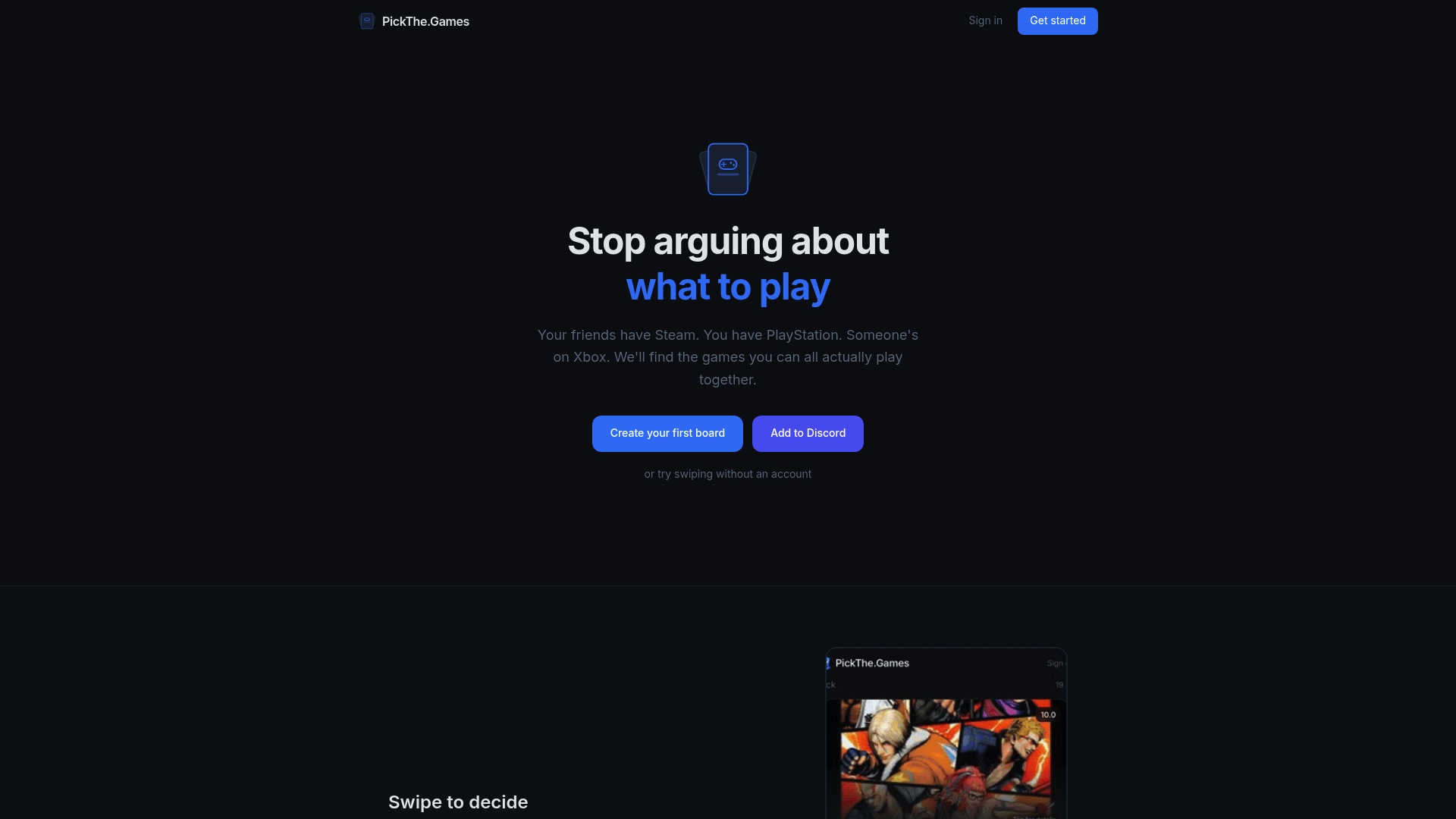
The crossplay compatibility checker filters PickThe.Games' library down to titles your exact platform mix supports, so you're not testing five games before finding one that works for everyone. Swipe boards let the whole group vote in real time, with a veto system so nobody gets stuck playing something they can't stand, and the Discord bot means voting happens right inside the server you already use to organise game night. If your group keeps landing on "what can we actually all play?" as the biggest bottleneck before a session even starts, browsing crossplay-friendly titles or building a board on Pickthe is a faster fix than another round of group-chat debate.
Sources
- How do I turn Fortnite crossplay On or Off from my console? - Fortnite Battle Royale Support
- Crossplay in Black Ops 6
- Cross-play is now live — Overwatch
- Cross-play: Hosting or Joining a Game — Larian support