Fix Crossplay With Friends Fast: 7 Quick Checks and a Game Checker
Fix Crossplay With Friends Fast: 7 Quick Checks and a Game Checker

Most cases of crossplay not working with friends come down to three things: someone's crossplay toggle is off, your group isn't on the same game build, or the host's network has a strict NAT type blocking connections. Run the quick checklist below first. If that doesn't sort it, the detailed fixes further down cover account links, patches, network settings, and when it's genuinely time to contact support.
*> TL;DR:
>
> - Ensuring all players have the latest game patch, matching build versions, and correct crossplay toggles is essential to avoid connection issues.
> - Re-linking accounts and removing outdated friend entries often resolves "offline" statuses caused by mismatched account tokens.
> - Strict NAT types, lack of UPnP, or improper port forwarding on routers frequently block crossplay, requiring network adjustments or hotspot testing.
> - Platform privacy settings for cross-network play and communication permissions must be enabled at the system level beyond in-game options.
> - Compatibility checks with tools like PickThe.Games help confirm platform support, while regional restrictions and server outages can also prevent crossplay connections.
*Table of Contents
- Quick checklist: seven fastest tests to try first
- Account links and friends lists: why re-linking often fixes "offline" statuses
- Version drift and patches: ensure every client runs the exact same build
- Network and NAT troubleshooting: UPnP, port forwarding and hotspot testing
- Platform privacy and communication permissions that silently block crossplay
- Lobby state, queues and mode mismatches: the overlooked timing issues
- Overlays, mods, VPNs and cache: device-level fixes that often help
- Server, patch and outage checks: when the fault is global
- When to contact support: what logs and information to gather first
- PickThe.Games: how our crossplay checker and group voting help avoid compatibility problems
- Verify that all players use compatible platform combinations that support crossplay
- Confirm if any regional restrictions or server lockouts apply
- Check for any friend list syncing issues across platforms
- Test with a direct invitation link versus manual invites
- Review in-game friend/block lists for accidental blocks
- Author perspective: practical habits to keep crossplay reliable
- Another option: use PickThe.Games to pick crossplay-compatible games and avoid repeated connection problems
- Official support pages and community threads to check next
- Sources
Quick checklist: seven fastest tests to try first
Before you start hunting through settings menus one by one, run through this list together in your group chat. Most crossplay issues with friends clear up within one of these seven steps.
1. Check crossplay toggles. Every player enables crossplay in their in-game settings, not just the host.
2. Match your builds. Fully close and relaunch the game so everyone downloads the latest patch.
3. Re-link accounts. Use the game's own friends system rather than console-only lists.
4. Test the network. Try a mobile hotspot on the host's device to rule out router problems, and check your NAT type.
5. Open communication permissions. Set platform privacy to allow cross-network play and voice chat.
6. Rebuild the lobby. Send everyone back to the main menu, then re-invite from scratch.
7. Strip it back. Turn off overlays, VPNs, and any mods while you test.
If step four flags a strict NAT, skip ahead to the network section below. Otherwise, work through the rest in order.
Account links and friends lists: why re-linking often fixes "offline" statuses
Crossplay rarely uses your console or launcher's built-in friends list. Games like Overwatch and titles from Larian route friend requests through their own unified account system, so a friend can show as offline everywhere except inside that game's dedicated friends tab.
That mismatch is the single most common reason someone appears unreachable despite being logged in. The fix is usually simple, if slightly tedious:
- Sign out of the platform account, then sign back in fully rather than resuming a cached session.
- Remove the stuck friend entry from the in-game list entirely.
- Re-link both the platform account and the publisher account (Epic, Blizzard, or similar) from the game's account settings menu.
- Send a brand-new friend request or invite rather than trying to revive the old one.
Deleting and re-adding a friend at both the in-game list and the external launcher often clears the stuck "offline" status caused by outdated tokens. Larian's own support pages confirm this pattern too: crossplay depends on linking your publisher account and adding friends by that account name, not by console handle. Watch for child or secondary profiles as well. Multiple accounts on the same console can quietly link crossplay to the wrong one.
Version drift and patches: ensure every client runs the exact same build
Consoles, PC, and mobile don't always receive updates at the same moment. One friend gets a patch, the others don't, and suddenly nobody can join anyone's lobby. This is version drift, and it's one of the most common causes of crossplay not connecting.
The symptoms are fairly distinct: a "different game version" message, a join attempt that just times out, or a party invite that silently fails. Before assuming it's a settings problem, check the actual numbers:
- Look at the build or version number in the game's main menu or pause screen.
- Compare it across every platform in your group, not just yours.
- Fully quit (not just minimise) and relaunch to force a check for pending updates.
- Check the publisher's patch notes for a staggered rollout notice.
Official guidance backs this up directly. Age of Empires support notes that staggered patch releases frequently disable crossplay until every platform catches up, and forum reports around Diablo IV describe the same pattern after major updates, where one platform gets ahead and locks everyone else out until consoles receive their own stabilising patch. If your build numbers don't match, waiting is often the actual fix.
Network and NAT troubleshooting: UPnP, port forwarding and hotspot testing

If toggles and versions all check out, the problem is often sitting inside your router. NAT (Network Address Translation) determines how easily your console or PC can be reached by other players' connections. An "Open" or "Moderate" NAT type usually plays nicely with crossplay; a "Strict" or "Type 3" NAT frequently blocks party invites and voice chat even when everything else looks correct.
Work through these in order:
- Check your NAT type in your platform's network settings.
- Enable UPnP on your router so the console can open ports automatically.
- If UPnP isn't available, forward the specific ports the game requires (check the publisher's support page for the exact list).
- Swap to a mobile hotspot briefly. If crossplay suddenly works, your home router is the culprit.
- Host from a wired Ethernet connection where possible, since Wi-Fi introduces extra instability for party hosting — detailed advice on private server setup helps pinpoint common hosting pitfalls in crossplay sessions like this from Voltra's blog.
Community troubleshooting guides consistently point to UPnP and port forwarding as the fix for strict NAT, alongside the hotspot test as a fast way to isolate the fault.
Pro Tip: If one person in your group always causes join failures, make them the guest, not the host, next time. A single stable, wired connection with an Open NAT does more for group reliability than everyone individually tweaking their own settings.Platform privacy and communication permissions that silently block crossplay
Here's a genuinely overlooked one: your in-game crossplay setting can be switched on and still get overridden by a master privacy setting at the platform level. On Xbox, the console-wide "You can join cross-network play" permission has to be allowed, separate from the game's own toggle, or joins simply fail with no clear error.
Check these platform settings alongside your in-game options:
- Xbox: privacy and online safety settings, specifically cross-network play and communications.
- PlayStation: communication and content settings, including who can send you messages and party invites.
- Nintendo and PC launchers: parental control and friend-request permissions, which sometimes default to restrictive.
- Child or family accounts: these almost always ship with cross-network play disabled by default and need a parent or guardian to switch it on.
Fortnite's own troubleshooting documentation makes the same point: party privacy and platform-level communication permissions are a more common cause of invite failures than an actual loss of crossplay capability. Change the setting, fully restart the app, then re-test the invite.
Lobby state, queues and mode mismatches: the overlooked timing issues
Sometimes crossplay is working perfectly. Your friend is just in the wrong place. If one person is mid-match, sitting in a matchmaking queue, or locked into a private or tournament lobby, invites will fail or simply vanish, even though every setting is correct.
Before troubleshooting further, get everyone into the same state:
- Send the whole group back to the main menu or central hub, not just the lobby screen.
- Confirm you're all queuing for the same playlist or mode, since ranked and casual queues often can't merge parties.
- Pick one person as host and have everyone else back out of any existing party before rejoining.
- Re-invite in a clear order, host first, rather than everyone sending invites simultaneously.
Forum threads around games like Warhammer's Vermintide series describe this exact fix: rebuilding the party fresh and giving it two or three minutes for presence tokens to refresh before assuming something's broken.
Overlays, mods, VPNs and cache: device-level fixes that often help
Third-party software running alongside your game can quietly interfere with the presence signals and invite notifications crossplay relies on.
- Turn off Discord, Steam, and GPU overlays while you test, since they intercept notification pop-ups.
- Disable any mods entirely. Larian's own support guidance recommends testing without mods installed because they can alter session metadata that other platforms can't read.
- Clear your console or launcher cache, and delete temporary launcher files if the game has repeatedly failed to update cleanly.
- Switch off any VPN. It can change your apparent region or route traffic in a way that breaks NAT negotiation.
Server, patch and outage checks: when the fault is global
Sometimes it's not you at all. Publishers occasionally disable crossplay deliberately during a patch rollout, waiting until every console has caught up before switching it back on.
- Check the publisher's official support page for a known issues or maintenance notice.
- Check their official X/Twitter account and server status page for outage confirmations.
- If a patch just went live on one platform, assume crossplay may be paused rather than broken, and check patch notes before you start adjusting local settings.
- While you wait, agree as a group on a single platform or region to try again once the rollout finishes.
When to contact support: what logs and information to gather first
If you've worked through the checklist and crossplay still isn't connecting, gather this before opening a ticket, it dramatically speeds up the response:
1. Your platform, exact game build number, and the error message word-for-word.
2. Your NAT type and results from the hotspot test.
3. The time the issue occurred and whether it's happening for the whole group or just one player.
4. A short list of what you've already tried, so support doesn't repeat it.
Escalate in this order: in-game support ticket first, then platform support (Xbox, PlayStation, or Steam), and finally your internet provider if the problem is network-wide and affects other online services too.
PickThe.Games: how our crossplay checker and group voting help avoid compatibility problems
A lot of "crossplay not working" moments aren't broken settings at all, they're groups trying to play a title that was never fully compatible across their specific mix of platforms. Pickthe's crossplay compatibility checker flags this before anyone wastes an evening troubleshooting. Pair it with group voting and veto to agree on a game everyone can actually join, then run the checklist above to confirm builds match. Check compatibility, confirm versions, then invite.
Verify that all players use compatible platform combinations that support crossplay
Not every crossplay label means the same thing. Some titles support full crossplay across PC, Xbox, PlayStation, and Nintendo Switch. Others only support crossplay between specific pairs, PC and Xbox, for example, while leaving PlayStation or Switch out entirely. This is where a lot of groups hit a wall without realising it, because the game's store page might say "crossplay supported" without spelling out which platforms are actually included.
Before you dig any further into settings or network fixes, confirm the exact platform combination your group is trying to use is one the developer genuinely supports. A quick search of the game's official support page or a look at the in-game crossplay menu (which usually lists eligible platforms directly) settles this fast.
It's also worth checking whether crossplay applies to the full game or only specific modes. Some titles enable it for co-op campaigns but restrict competitive or ranked modes to same-platform matchmaking only, a distinction that trips up plenty of groups who assume crossplay is all-or-nothing.
If your combination isn't supported, no amount of toggling settings or resetting routers will fix it, because the restriction sits at the publisher's server level, not on your device. In that case, your only real options are switching to a game with broader platform support or picking a different mode within the same title that does allow cross-platform matchmaking.
Confirm if any regional restrictions or server lockouts apply
Crossplay can behave differently depending on which regional server pool each player connects to, and this is one of the more frustrating causes because it often looks identical to a settings problem. If you and a friend are in different countries, or even different regions of the same country with separate server clusters, you might not be able to matchmake together even with crossplay fully enabled on both ends.
This shows up most often in games with region-locked matchmaking for latency reasons, or titles that restrict certain content, modes, or in-game items in specific territories due to local regulations. A friend overseas might see a different game catalogue, different seasonal content, or simply be routed to a server pool your account can't reach.
Check your in-game region setting first, it's often changeable manually and defaults to your detected location rather than your preferred one. If manually switching region doesn't help, check the publisher's support page for a list of known regional restrictions, since some are hard locks that no setting change will bypass.
Server lockouts function similarly but are usually temporary. During a regional outage, maintenance window, or a rollout that's only reached certain territories, players in unaffected regions can end up unable to join those still waiting. If everything else on your checklist checks out and one friend is consistently unreachable while others aren't, ask where they're physically located and what region their account is set to before assuming it's a device problem.
Check for any friend list syncing issues across platforms
Crossplay friends lists don't always sync as reliably as you'd expect, particularly across three or four different platforms at once. A friend added on PlayStation might show correctly in the game's unified list but fail to sync to your Nintendo Switch account, or appear with a stale "last online" status that never updates.
This tends to happen because most crossplay games maintain two separate friend systems running in parallel: your console or launcher's native list, and the game's own publisher-linked list. When these two fall out of sync, usually after an account re-link, a password change, or a period of inactivity, you'll see a friend listed but be unable to actually invite or join them.
A few practical checks help isolate this. First, confirm the friend appears in the game's own dedicated friends menu, not just your console's system-level list; these are genuinely different things and syncing between them can lag by several minutes or occasionally longer after any account change. Second, check whether their status shows correctly on your side but not theirs, or vice versa, since sync issues are often one-directional rather than affecting both accounts equally.
If a friend has recently changed their username, linked a new platform account, or reinstalled the game, treat that as the likely trigger. Removing and re-adding them, as covered in the account linking section above, resolves the majority of these sync failures because it forces both friend systems to refresh from scratch rather than relying on cached data that never updated properly.
Test with a direct invitation link versus manual invites
When manual in-game invites keep failing silently, a direct invitation link is worth trying before you assume the whole system is broken. Most crossplay titles now generate a shareable link, sent through Discord, text, or the platform's own share sheet, that bypasses the standard friends-list invite flow entirely and drops the recipient straight into your lobby or party.
This matters because manual invites rely on both accounts being correctly synced and both friend systems recognising each other, exactly the process that breaks down in the syncing and account-linking issues covered earlier. A direct link sidesteps most of that, since it doesn't need the platform to confirm you're already friends, it just needs the recipient to be signed into a compatible account and running a matching game build.
If a friend can join through a direct link but not through a normal invite, that's a strong signal the problem sits specifically with your friends list or account sync rather than crossplay itself, your network, or your build version. It narrows the troubleshooting considerably and saves you from re-checking settings that were never actually the issue.
The reverse is useful information too. If a direct link fails in exactly the same way a manual invite does, timing out, showing an error, or simply doing nothing, that points towards a broader problem: NAT restrictions, version mismatch, or a regional lockout, rather than anything specific to your friends list. Try generating a fresh link rather than reusing an old one, since some expire after a set period or after a single use.
Review in-game friend/block lists for accidental blocks

It sounds almost too simple, but accidental blocks are a genuinely common cause of crossplay not working with friends, particularly in larger groups where people have played together across multiple games and platforms over time. A block from months ago, sometimes triggered by mistake through a menu misclick, can quietly persist and prevent invites, messages, or party joins without any obvious error message explaining why.
The tricky part is that blocks don't always show the same way across every platform. Someone might appear as a normal friend in your console's system-level list while still being blocked specifically within the game's own social system, or the other way around. That's why it's worth checking both lists separately rather than assuming one accurately reflects the other.
Open the game's own friends menu and look specifically for a blocked or restricted users list, most titles keep this separate from the main friends tab. Do the same on your platform's system-level settings, since Xbox, PlayStation, and Nintendo all maintain their own independent block lists that operate regardless of what's happening inside the game itself.
If you find nothing on your end, ask your friend to check theirs too. Blocks are one-directional, so it's entirely possible the restriction exists on their account rather than yours, and neither of you would necessarily know without checking. Clearing an accidental block usually takes effect immediately, making it one of the faster fixes on this entire list once you've actually found it.
Author perspective: practical habits to keep crossplay reliable
Most groups treat crossplay troubleshooting as a one-off crisis instead of a habit. It shouldn't be. Build a two-minute pre-game routine: confirm builds match, keep one host on a wired connection with a known Open NAT, and run a compatibility check before you even open the game. A shared Discord channel for coordination catches version drift and permission issues before they derail your session.
> — PickThe
Another option: use PickThe.Games to pick crossplay-compatible games and avoid repeated connection problems
Troubleshooting NAT settings and account links fixes the problem in front of you, but it doesn't stop your group choosing another mismatched title next week. Pickthe is built for exactly that gap: a free tool where your group swipes through options together and the platform automatically flags cross-platform compatibility before anyone commits an evening to a game that half of you can't actually join.
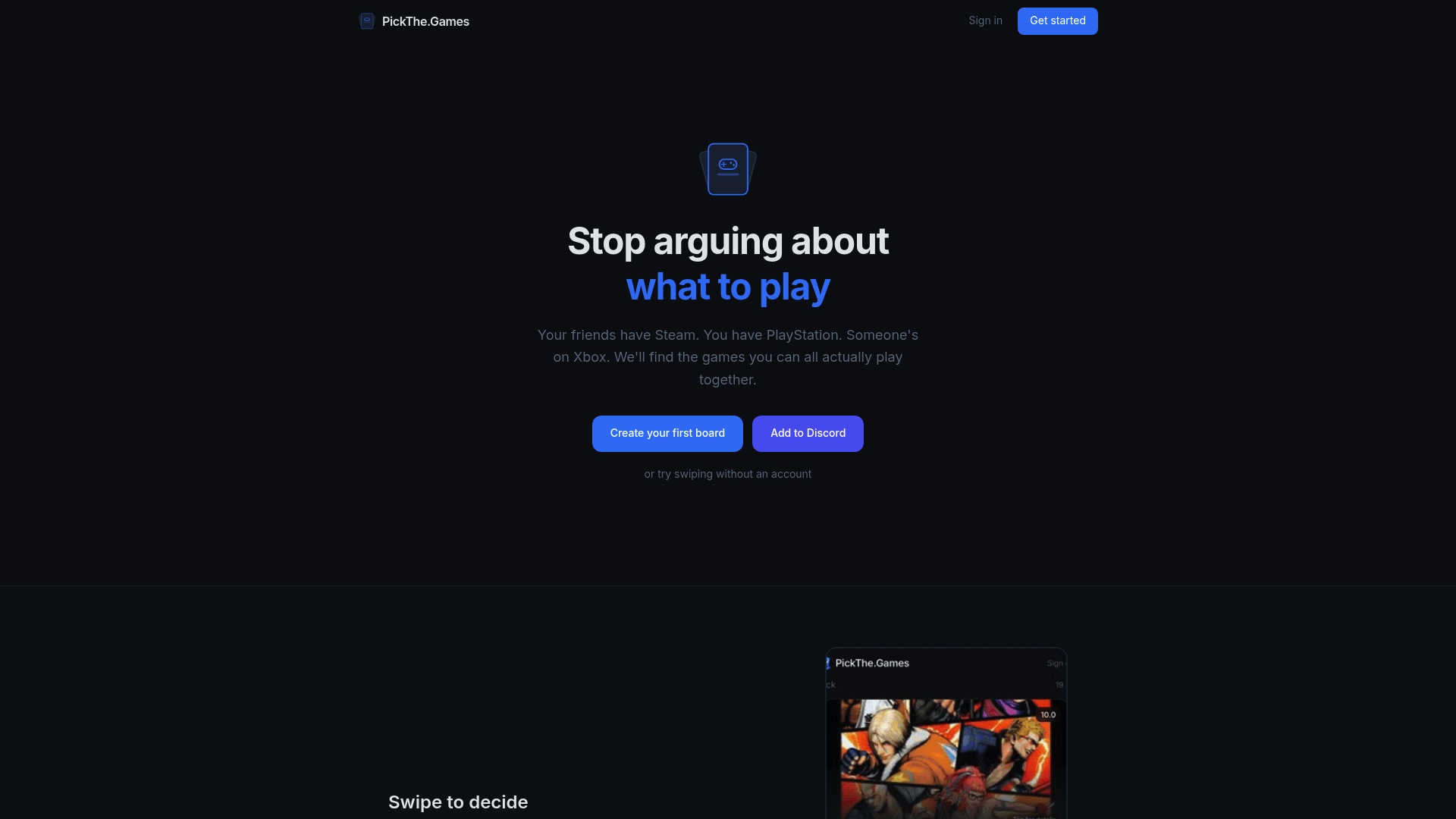
Run your usual line-up through the crossplay compatibility checker before your next session, then let the group vote and veto their way to something everyone can actually play. If you're hunting for something new entirely, browse the best crossplay games or check what works specifically across PC and Xbox. Pair it with the Discord-friendly game night picker and you'll spend your next game night actually playing, not debugging NAT types.
Official support pages and community threads to check next
Check Larian's crossplay guidance, Age of Empires support, and your game's official status page during outages.
Sources
- Cross-play: Hosting or joining a game – Larian support
- Crossplay issues in Overwatch (community thread) - Blizzard forums
- 2K26 Crossplay not working: 7 Fixes to Play with Friends