Multiplayer compatibility check: your 2026 guide
Multiplayer compatibility check: your 2026 guide
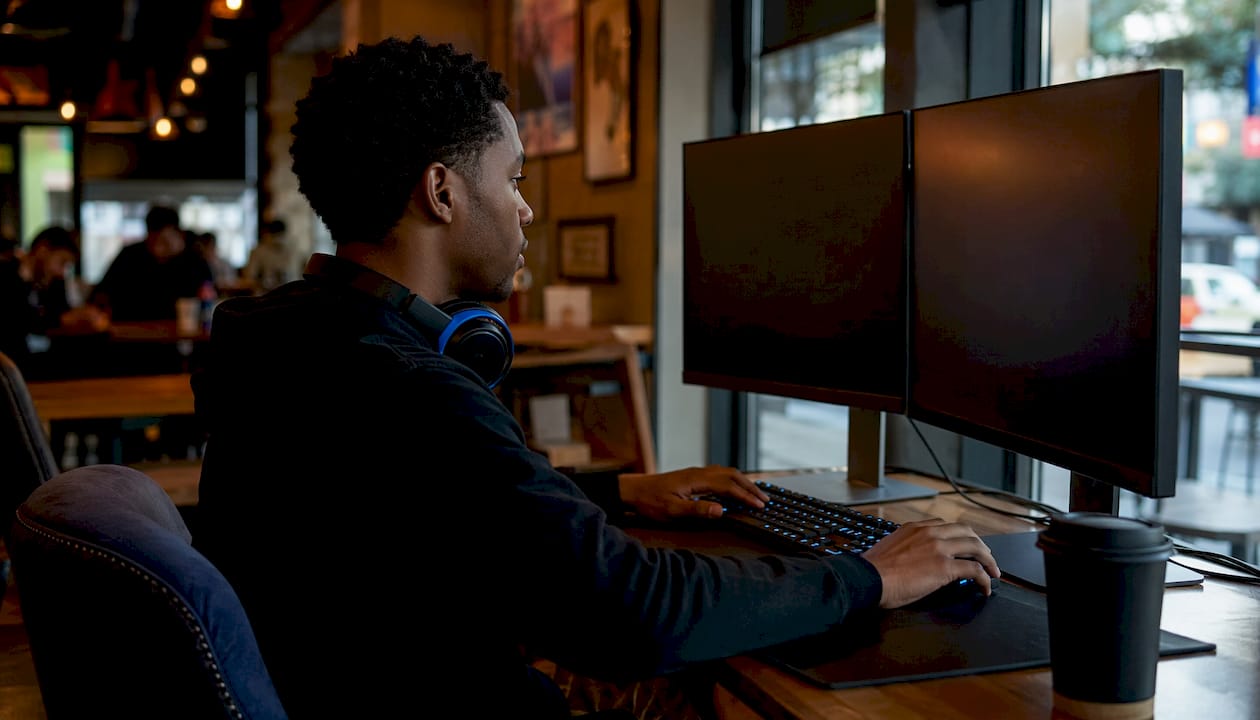
A multiplayer compatibility check is the process of verifying whether different gaming platforms, setups, and configurations can connect and share the same multiplayer session. Your group might own the same game but play on PlayStation, Xbox, PC, and Switch. Without checking compatibility first, you could spend more time troubleshooting than actually playing. Understanding why compatibility delays sessions is the first step to fixing them. The industry term for the broadest version of this process is cross-platform verification, and it covers everything from matchmaking infrastructure to mod synchronisation and account linking.
What is a multiplayer compatibility check and how does it work?
A multiplayer compatibility check confirms whether two or more players on different platforms or setups can join the same game session. The check covers several layers: the game itself, the platform network, the game version, and any mods or additional content installed. Each layer can independently block a session if it is out of sync.
Databases tracking crossplay status now cover over 257 titles, and 53% of those games support full crossplay across all major platforms. That figure means nearly half of all tracked games still have some form of restriction, which is exactly why checking before you play matters.
The five main ecosystems involved are PC, PlayStation, Xbox, Nintendo Switch, and mobile. Each has its own network service: PSN, Xbox Live, Steam, and the Nintendo Switch Online service. Crossplay requires these services to communicate through shared servers or a unified matchmaking layer. When that layer is missing or restricted, players on different platforms simply cannot see each other's lobbies.
Crossplay itself comes in three forms:
- Full crossplay: All platforms share the same matchmaking pool and lobbies.
- Partial crossplay: Some platforms connect but others are excluded. A game might allow PC and Xbox to play together but not PlayStation.
- Mode-specific crossplay: Crossplay works in casual modes but is disabled in ranked or competitive playlists.
Knowing which type applies to your group's game is the core output of any compatibility check.
What role do mods and game versions play in multiplayer compatibility?
Mismatched game versions and mod lists are the most common cause of failed multiplayer sessions outside of network issues. If one player is on version 1.4 and another is on version 1.5, the session will either refuse to connect or desynch mid-game. The same applies to mods: every player must run identical mod lists in the same load order.
Desync errors and corrupted game files are frequently caused by version mismatches and mod conflicts. A desynch does not always crash the game immediately. Sometimes it causes subtle bugs, like enemies behaving differently for each player, before eventually breaking the session entirely.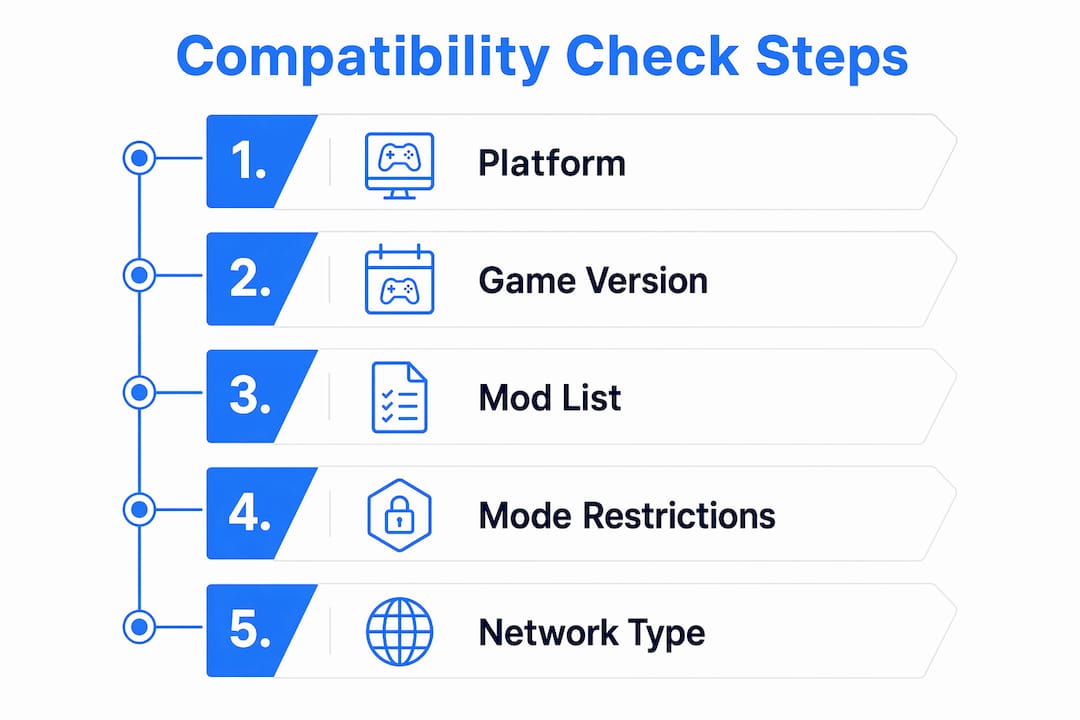
Dedicated verification tools exist to catch these issues before they cause problems. Static code analysis tools can scan resources and servers to detect mod conflicts, deprecated functions, and configuration mismatches. These tools are particularly useful for modded servers with large, complex mod lists.
Many games include automated mod verification prompts when you attempt to join a session. However, manual verification of mod lists remains the gold standard because automated checks cannot always account for subtle interaction conflicts between mods. The exact load order matters as much as the mod list itself.
Key steps for mod and version compatibility:
- Confirm all players are on the same game version before launching.
- Share a full mod list, including version numbers, with every player in the group.
- Match the load order exactly across all installs.
- Disable mods that are not confirmed compatible with the current game version.
- Use server-side verification tools where available, but follow up with a manual check.
What challenges exist in checking multiplayer compatibility for different modes and hardware?
Compatibility is not a single yes or no answer. It changes depending on the game mode, the hardware generation, and the networking method the game uses.
Mode-specific restrictions
Crossplay support can differ by playlist or mode, with ranked play often carrying stricter restrictions than casual modes. Some games separate controller and keyboard players into different matchmaking pools, even when crossplay is technically enabled. This means your group might be able to play together in a social or private lobby but not in a competitive queue.
The four main multiplayer mode categories and their typical compatibility behaviour are:
1. Campaign co-op: Usually the most permissive. Crossplay is often fully enabled here because there is no competitive balance concern.
2. Social and casual modes: Generally allow crossplay across most platforms, though input-based separation may still apply.
3. Ranked and competitive modes: Frequently restrict crossplay or separate players by input device to maintain fairness.
4. Private lobbies: Often the most flexible, allowing host-controlled crossplay settings regardless of the game's default.
Generational hardware differences
Hardware generations create a separate compatibility layer. Nintendo Switch game compatibility with Nintendo Switch 2 was last updated in june 2025, reflecting how quickly these statuses change after a new console launches. A game that ran on the original Switch may behave differently on Switch 2 due to hardware changes, and multiplayer between the two generations is not guaranteed.
The same principle applies within the PlayStation and Xbox families. Cross-generational play between PS4 and PS5, or Xbox One and Xbox Series X, depends entirely on whether the developer has maintained a shared server pool.
Networking methods
The networking method a game uses also affects your experience. Peer-to-peer connections offer reliable synchronisation but require port forwarding for stability, which adds a configuration step on the player's side. Relay servers are simpler to connect through but introduce additional latency, which matters in fast-paced games.
Pro Tip: If your group uses peer-to-peer and someone cannot connect, ask the host to check their router's port forwarding settings before assuming the game itself is the problem.How can your group effectively check multiplayer compatibility before playing?
The most reliable approach combines a dedicated crossplay database with a manual check of your specific setup. No single source covers every game, mode, and platform combination, so using two or three sources together gives you the most accurate picture.
Compatibility is dynamic and must be rechecked after game patches or new platform releases. A game that supported full crossplay in january may have restricted it in a march update. Seasonal events sometimes temporarily alter matchmaking pools as well.
Practical steps to check compatibility before your session:
- Check a crossplay database for your specific game and confirm which platforms are supported and in which modes.
- Verify account linking requirements. Some games require you to link a separate account (such as an Epic Games account) before crossplay functions, even if the game itself supports it.
- Confirm game versions across all players. Check the version number in the game's main menu or settings, not just the storefront.
- Review input-based matchmaking settings. If your group mixes controller and keyboard players, check whether the game separates those pools.
- Check the game's official patch notes after any recent update to see if crossplay settings have changed.
Purchasing games from different storefronts can restrict multiplayer even when crossplay is enabled, if the underlying network service differs. A game bought on Steam and the same game bought through another PC storefront may not share the same multiplayer infrastructure. Always confirm the storefront as part of your check.
Warning signs that compatibility has failed mid-session include: players unable to see each other's lobbies, desynch errors appearing shortly after joining, or one player experiencing different in-game events from the rest of the group. These are diagnostic signals, not random bugs, and each points to a specific layer of the compatibility stack.
Key takeaways
A multiplayer compatibility check covers platform networks, game versions, mod lists, and mode-specific settings, and must be repeated after every major patch or hardware change.
| Point | Details |
| --- | --- |
| Three types of crossplay | Full, partial, and mode-specific crossplay each require a different verification approach. |
| Mod synchronisation is critical | Every player must run identical mod lists in the same load order to prevent desynch errors. |
| Mode restrictions are common | Ranked and competitive modes frequently restrict crossplay even when casual modes allow it. |
| Hardware generations matter | Cross-generational play between console families is not guaranteed and changes after hardware launches. |
| Recheck after every patch | Compatibility status changes with updates, so verify again before each session following a patch. |
The part most guides skip entirely
Most compatibility guides treat crossplay as a binary feature. Either a game has it or it does not. That framing misses the most frustrating category: games that advertise crossplay but quietly disable it in the modes your group actually wants to play.
Ranked modes are the clearest example. A game can truthfully claim crossplay support while restricting it entirely in competitive queues. Your group checks the database, sees "crossplay: yes," and then spends twenty minutes confused about why you cannot queue together. The answer is almost always buried in a patch note from three months ago.
The same problem appears with storefronts. Two players can own the same game, on the same platform, and still fail to connect because one bought it through a different distribution channel that uses a separate network backend. This is not a bug. It is a deliberate infrastructure decision by the developer, and it is almost never mentioned on the game's store page.
My honest advice: treat every compatibility check as a three-layer process. First, confirm platform support. Second, confirm mode support within that platform combination. Third, confirm storefront and account linking compatibility. Skipping any layer is how you end up troubleshooting instead of playing.
Pickthe was built with exactly this problem in mind. The crossplay compatibility checker cuts through the noise by letting your whole group verify what you can actually play together, not just what the marketing says.
> — Pickthe
Find your next multiplayer game with Pickthe
Knowing how compatibility works is useful. Having a tool that does the checking for you is better.

Pickthe's crossplay compatibility checker lets your group verify platform support in minutes, without digging through patch notes or forum threads. The database covers over 6,000 games with continuous updates, so the information reflects the current state of each title. If your group enjoys action titles, the action multiplayer games catalogue is filtered by platform and crossplay support, making it straightforward to find something everyone can join. No paywalls, no lengthy setup, and no more arguing about what to play.
FAQ
What does a multiplayer compatibility check actually verify?
A multiplayer compatibility check confirms whether players on different platforms, game versions, or mod setups can join the same session. It covers platform network support, crossplay mode restrictions, account linking, and version synchronisation.
How do I check multiplayer compatibility for my group?
Use a dedicated crossplay database to confirm platform support, then verify game versions and account linking requirements across all players. Recheck after any major patch, as compatibility status changes with updates.
Can mods break multiplayer compatibility?
Yes. Mismatched mod lists or different load orders cause desynch errors and session failures. Every player must run identical mods in the same order, and manual verification is more reliable than automated prompts alone.
Why does crossplay work in casual modes but not ranked?
Some games separate crossplay by playlist, restricting it in ranked or competitive modes to manage input fairness or balance concerns. Always check mode-specific support, not just the game's overall crossplay status.
Does buying a game from a different storefront affect multiplayer?
Yes. Games bought through different storefronts may use separate network backends, blocking multiplayer even when crossplay is enabled. Confirm that all players are using the same network service before your session.