Discord Activities List: 13 Current Apps and a 60 Second Vote
Discord Activities List: 13 Current Apps and a 60 Second Vote

Discord Activities are built-in, web-based games and shared-media apps you can launch straight from a voice channel using the Rocket Ship icon. No downloads, no faff. This article covers the current activities list, how to fire one up in seconds, which devices support them, and a quick way to settle on one when your group can't agree.
*> TL;DR:
>
> - Activities support a wide range of games and tools, from large-party games like Gartic Phone to one-on-one options such as Chess in the Park.
> - Launching or joining an Activity is quick on desktop, web, or mobile, but permissions are needed to avoid issues like missing options or inability to join.
> - Compatibility across devices is high due to web-based hosting, though older phones may experience lag, and some Activities behave differently depending on the platform.
> - Managing server access by restricting the Use Activities permission to specific roles and setting scheduled channels ensures smoother, less chaotic use during events.
> - External developer-built Activities are now available, and group decision-making can be streamlined through voting tools that help pick suitable activities quickly.
*Table of Contents
- The full Discord activities list (and what each one is best for)
- How to start or join a Discord Activity
- Do Activities work on every device?
- Fixing common Discord Activities problems
- How to pick the right Activity without the argument
- Keeping Activities under control on a busy server
- What data do Discord Activities actually use?
- Creative ways servers are using Activities
- Our take on Activities and where they fall short
- When the Activities list still doesn't settle it
- Sources
The full Discord activities list (and what each one is best for)
Discord's own Activities documentation confirms the library includes more than a dozen built-in Activities, with most supporting a range of players depending on the game type. Here's how they break down by mood and group size.
Party and social games (great for bigger, louder groups):- Gartic Phone — a drawing-and-guessing chain game where your sketch gets passed along and mangled by the next player's interpretation. Supports large groups and is one of the most reliably hilarious options for a mixed crowd.
- Sketch Heads — a straightforward drawing guessing game, closer to a classic Pictionary format than Gartic Phone's telephone-style chaos.
- Know What I Meme — a meme-caption game that rewards whoever's timeline is the most unhinged. Works well with friend groups who already speak in memes.
- Bobble League — a light, physics-based party game with simple controls, suited to short rounds between bigger conversations.
- Chess in the Park — a relaxed, visual take on chess for two players, ideal when you want a quiet one-on-one without leaving voice chat.
- Poker Night — Discord's take on Texas Hold'em, playable with a small table of friends and genuinely good for a slower, chattier session.
- Blazing 8s — a fast card game in the UNO family, quick to learn and quick to finish, which makes it useful as a filler between longer games.
- Letter League — a word-based competitive game that rewards vocabulary and speed in equal measure.
- SpellCast — a Boggle-style word grid game with a scoring twist, good for smaller groups who like a bit of brainy competition.
- Putt Party — a mini-golf style game that's easy to pick up and works nicely as a casual, low-pressure activity while people trickle into a call.
- Land-io — a territory-claiming arcade game, simple to explain in one sentence but surprisingly sticky once people start competing for space.
- Jamspace Whiteboard — a shared drawing and brainstorming canvas, less "game" and more genuinely useful tool for planning, doodling, or just messing about together.
- Watch Together — lets a group queue up and watch video content in sync inside the voice channel, which remains one of the most-used Activities for casual hangouts.
Discord's blog post on Activities lists these as official examples, last updated in June 2024, and notes the platform is now open to developer-built Activities. That matters: the list you see today isn't fixed. New third-party Activities appear regularly through the App Launcher, so treat any "complete" list as a snapshot rather than gospel. Some third-party Activities may prompt for extra authorisation the first time you launch them, and a handful include in-app purchases, so it's worth a glance at what you're agreeing to before diving in.
How to start or join a Discord Activity
Launching one takes seconds once you know where to look.
1. Join a voice channel on desktop, web, or mobile.
2. Click the Rocket Ship icon next to the Video and Screen Share buttons.
3. Pick an Activity from the list that appears.
4. If someone's already running one, you'll see a Join Activity prompt instead. Click it to jump straight in.
There are a couple of other entry points worth knowing. Developers can also trigger Activities through slash commands or embed launch buttons directly inside chat messages, so you might see one pop up without anyone touching the Rocket Ship icon at all.
To invite others once an Activity is running, right-click the voice channel and select Invite to Join, or copy the activity link and drop it in chat, according to Discord's Activities support guide. Bear in mind you'll need the Use Activities permission on that server, which admins manage under channel permissions in server settings.
Pro Tip: If you're the one hosting, launch the Activity yourself first and send the invite link in chat rather than relying on people spotting the Rocket Ship icon. It saves the "wait, how do I join?" messages.Do Activities work on every device?
Yes, largely. Activities run on desktop, web browsers, and mobile, because they're web apps hosted in an iframe using Discord's Embedded App SDK. That's the technical reason they feel consistent across platforms rather than needing separate builds for each one.
A few practical notes:
- Player counts vary by Activity, from small two-player games to larger party games
- Because they're essentially web pages, expect the odd authorisation pop-up on first launch.
- Mobile devices can warm up during longer sessions, and older phones may show more lag than desktop.
- Not every Activity behaves identically on every device, so test with a small group before rolling one out to a big server event.
Fixing common Discord Activities problems
Most issues trace back to connection, permissions, or a stale cache rather than anything broken on Discord's end. Since Activities run as web apps, treating them like a browser problem often works.
- Won't load or freezes: check your connection, then try clearing Discord's cache and restarting the app.
- Can't see the Activity option: confirm you have the Use Activities permission on that server; ask an admin to check channel settings if you're unsure.
- Missing entirely from the list: the server may restrict it, or the Activity itself may not be installed or available in your region.
- Joining late: ask the host to right-click the voice channel and send an Invite to Join, or share the activity link directly.
How to pick the right Activity without the argument
Scrolling the Rocket Ship menu with six people shouting suggestions rarely ends well. A quicker method:
- Narrow by group size first. Six or more people rules out the 1v1 games instantly.
- Pick a type, not a title. Decide if you want competitive, creative, or watch-together before browsing names.
- Run a fast vote. Once you're down to two or three options, let the group vote rather than debate.
That last step is where a dedicated tool earns its keep. Pickthe integrates directly with Discord, letting your group swipe or vote on options in real time, with a veto system so nobody gets stuck playing something they hate. It also checks crossplay compatibility, which matters the moment your session moves from a quick Activity to a full external game. Built-in Activities are ideal for drop-in fun with whoever's already in the channel; a voting tool earns its place when you're planning ahead or choosing between several full games.
Keeping Activities under control on a busy server
A server with hundreds of members and an open Rocket Ship menu can turn chaotic fast, so a bit of structure helps everyone enjoy it more.
Restrict the Use Activities permission to specific roles on channels where you want tighter control, rather than leaving it open server-wide. This stops random voice channels turning into impromptu game lobbies during events you'd rather keep focused. For scheduled game nights, create a dedicated voice channel just for Activities and leave your general chat channels alone.
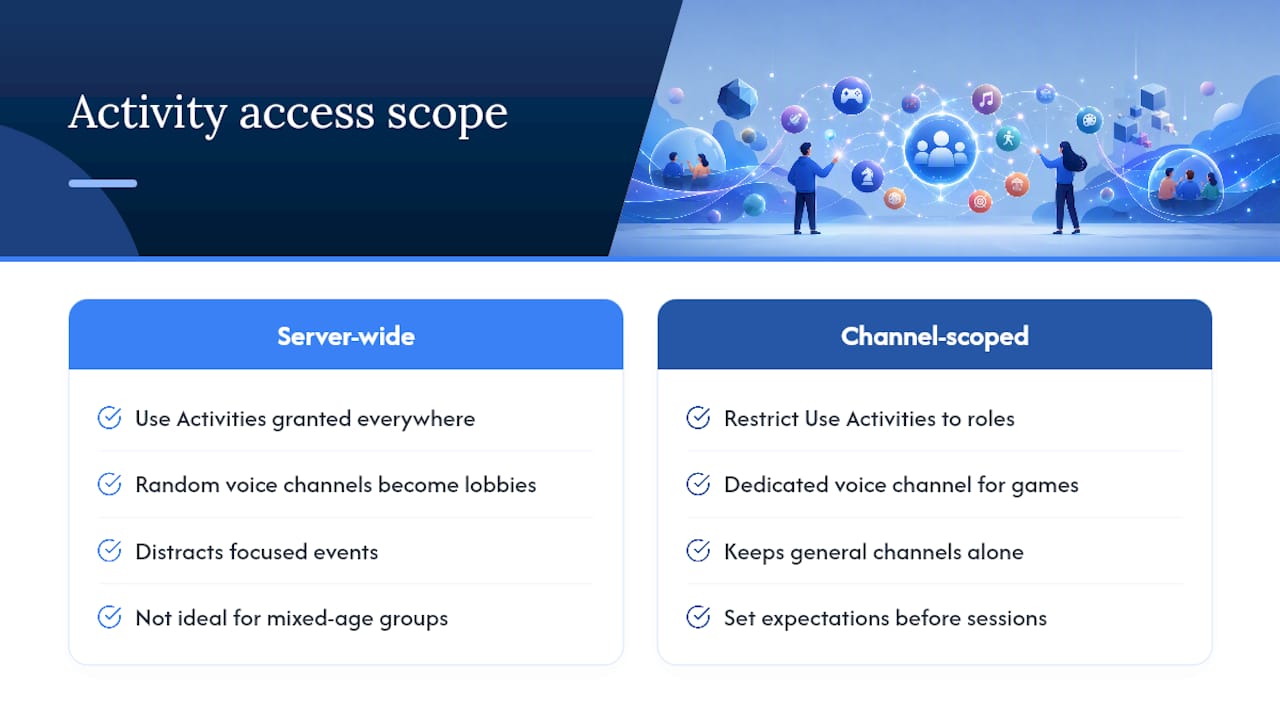
Set expectations before launching anything with a large or mixed-age group. Some Activities involve chat input or drawing, which means moderation matters just as much as it does in text channels. Gartic Phone and Sketch Heads, in particular, let players type or draw freely, so a server with younger members benefits from a quick reminder about appropriate content before the round starts.
Watch for authorisation prompts appearing for members trying an Activity for the first time. That's normal, not a bug, but it's worth mentioning in a pinned message so new members don't assume something's broken.
Finally, don't be afraid to remove access to a specific Activity if it's causing friction. Server permissions can be scoped per-channel, so shutting one Activity down doesn't mean disabling the Rocket Ship icon entirely. If you're planning something bigger than a casual drop-in, a structured game night hosting checklist helps keep the moderation side sorted before people even join the call.
What data do Discord Activities actually use?
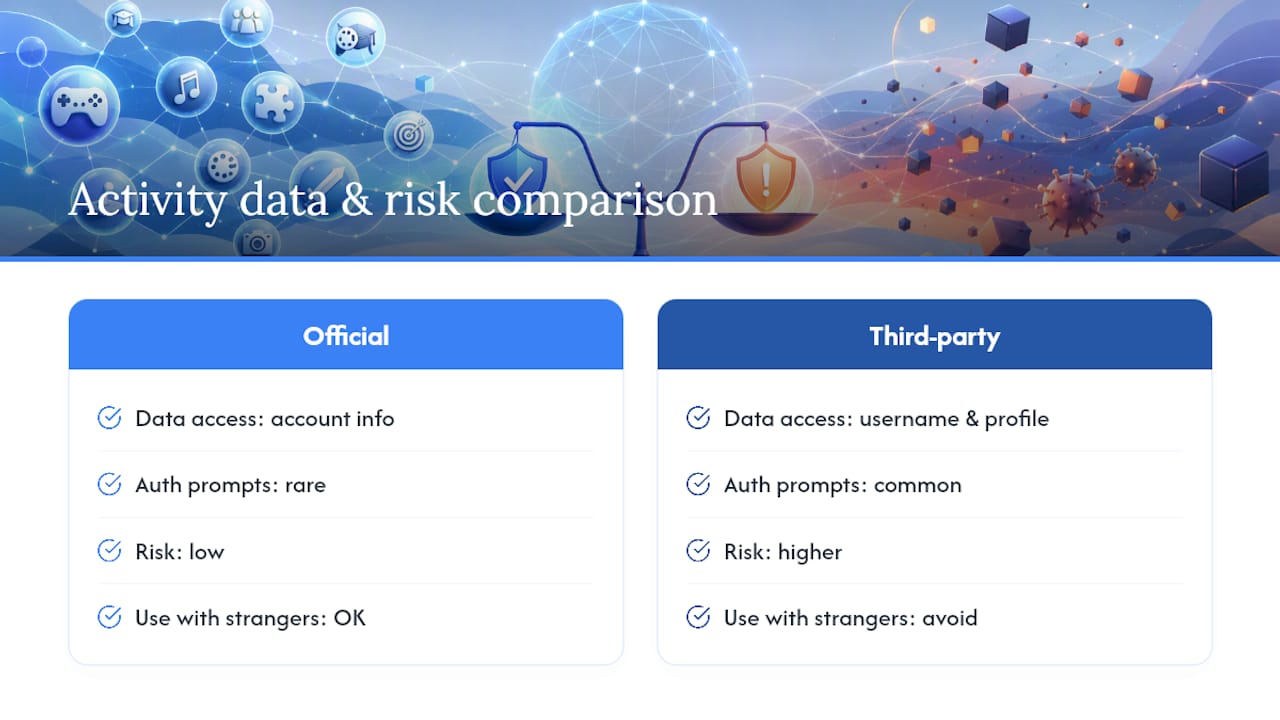
Because Activities run as embedded web apps rather than native Discord features, they behave a bit like visiting a website inside your voice channel. The Embedded App SDK handles communication between the Activity and Discord's client, which is also why some Activities ask for extra authorisation the first time you use them, particularly third-party ones built by outside developers.
That authorisation prompt is worth reading rather than clicking through automatically. It typically tells you what information the Activity can access, such as your Discord username or basic profile details, and first-time players should treat it the same way they'd treat any browser permission request. Official Discord-built Activities tend to need less than third-party ones, since Discord already has your account information through the platform itself.
If you're playing with a group that includes people you don't know well, such as a public server event, it's sensible to stick to official Activities rather than newer third-party ones, simply because they've had more scrutiny. Nothing in Discord's own documentation suggests built-in Activities collect anything unusual, but "unusual" third-party Activities are exactly the kind of thing that slips through when a platform opens itself to outside developers, as Discord did in 2024. A cautious approach costs nothing and avoids the rare bad actor.
Creative ways servers are using Activities
The obvious use is filling dead air while people wait for a game to start, but plenty of servers have found sharper uses for the list; for external game suggestions to complement Activities, check out JayPlaysGames’ selection of free-to-play titles.
Study and hobby servers use Jamspace Whiteboard for actual planning sessions rather than games, turning it into a shared brainstorming tool during voice calls about projects, events, or even server rule drafts. Book clubs and watch-party communities lean on Watch Together to run synchronised screenings without needing a separate app, which keeps discussion and viewing in the same window.
Some community managers run Poker Night or Chess in the Park as scheduled weekly events rather than spontaneous fun, giving members a reliable reason to show up at the same time each week. Others use quick rounds of Gartic Phone or Know What I Meme as icebreakers at the start of new-member events, since both games reveal personality fast without anyone needing to say much out loud.
None of this requires special setup beyond what's already built into Discord. It just means treating the Activities list as a toolkit for community building, not only a distraction between matches.
Our take on Activities and where they fall short
Activities genuinely lowered the barrier to casual play. There's no faster way to go from "bored in voice chat" to "playing something" than clicking one icon. Use them for drop-in fun and keep scheduled game nights for anything requiring real strategy or a full game session. Worth watching: the marketplace is now open to outside developers, so expect the list to keep shifting.
> — PickThe
When the Activities list still doesn't settle it
Sometimes even a great Activities list doesn't solve the actual problem: six people, six opinions, and nobody willing to compromise. That's a different puzzle than "what's available". Instead of scrolling the Rocket Ship menu on a loop, your group can use a voting tool to swipe through options together, vote in real time, and land on something everyone's actually happy playing, whether that's a quick built-in Activity or a full external game.
Say your group's torn between three Activities and a couple of proper multiplayer games. Run a 60-second swipe session, let the veto system knock out anything nobody wants, and the game night picker does the deciding for you. It also checks crossplay automatically, so if you end up wanting something beefier than a voice channel game, everyone in the group can actually join in regardless of platform. Head to PickThe.Games and set up a board before your next call starts, not after twenty minutes of "I don't mind, what do you want to play?"
Sources
- Activities Overview - Documentation
- Discord Activities: Play Games and Watch Together
- How to Use Apps – Discord Apps and Activities