Gamers: Choose From 6,000+ Games And Stay in Cross Platform Voice Chat
Gamers: Choose From 6,000+ Games And Stay in Cross Platform Voice Chat

Discord is the fastest, broadest way to get PC, console and mobile players talking in one place, and it's the default answer for most groups. In‑game voice or console party chat can beat it when a title supports crossplay natively, and Mumble or a self‑hosted setup wins on privacy and latency for competitive squads who want more control.
*> TL;DR:
>
> - Discord remains the most convenient cross-platform voice chat option for casual groups, with over 200 million users and easy setup across devices.
> - In‑game voice and console party chat are efficient within the same ecosystem but often struggle with cross-network connectivity.
> - Dedicated voice servers like TeamSpeak, Mumble, and self-hosted solutions offer better control, privacy, and lower latency for large or privacy-conscious communities.
> - Common issues like no audio or echo are usually linked to permissions, NAT types, or hardware problems, which can often be fixed with proper settings adjustments.
> - Using push‑to‑talk minimizes battery drain and data usage on mobile, and combining Discord with tools like Pickthe simplifies choosing compatible crossplay games in real time.
*Table of Contents
- Cross-platform voice chat options at a glance
- How each voice chat method actually compares
- Setting up cross-platform voice chat step by step
- Fixing common cross-platform voice chat problems
- How Pickthe keeps your group talking while you decide what to play
- Battery life and data usage on mobile voice chat
- A quick checklist before your next session
- Try Pickthe alongside your voice setup
- Sources
Cross-platform voice chat options at a glance
Not every group needs the same setup. A casual crew jumping between PC and console wants something that installs in minutes; a competitive team might trade convenience for lower latency and tighter admin control.
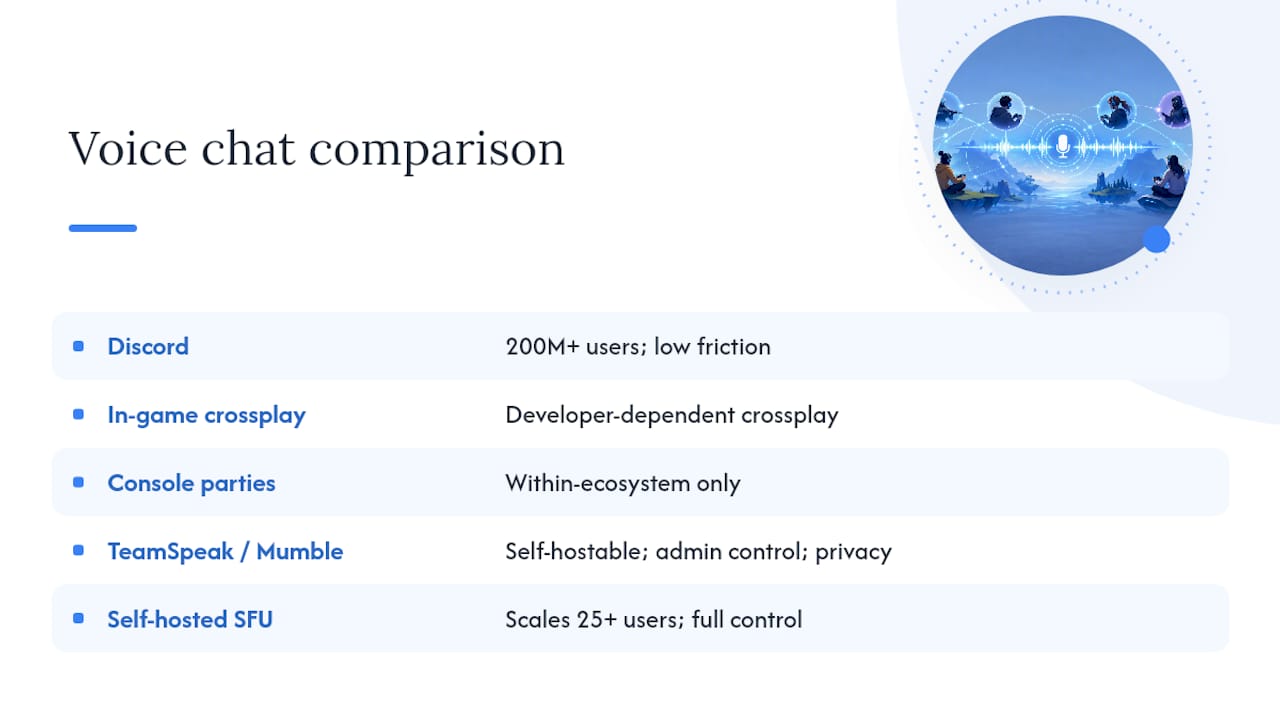
- Discord: works on desktop, mobile, and (with account linking) most consoles. Best for mixed groups who want zero fuss.
- In‑game crossplay voice: built into some titles, no extra app needed. Best when the game already handles it well, though quality varies wildly.
- Console party or chat bridging: PlayStation and Xbox both offer party‑style chat, but it doesn't always reach players on other platforms. Best for same‑console friend groups.
- Mumble or TeamSpeak: dedicated voice servers with strong admin tools. Best for clans, leagues, or anyone who wants low latency and control over who talks.
- Self‑hosted (mediasoup‑based projects): run your own server infrastructure. Best for technical users running large communities who want full ownership of the stack.
For a casual game night, Discord alone solves most of the headache. For a ranked scrim or a Discord server with hundreds of members, the other four options start to matter a lot more.
How each voice chat method actually compares
Discord's biggest advantage is the "channel" model: you drop into a voice room without placing an explicit call, which removes the social awkwardness of one‑to‑one calling and reduces friction for group play. It runs on the Opus codec, sounds clear even on modest connections, and supports well over 200 million monthly active users across desktop, mobile, and browser. The catch for console players: linking a PlayStation Network or Xbox account to Discord is required, and it doesn't cover every title's in‑game chat.
In‑game crossplay voice skips the extra app entirely, but it lives or dies by how well the developer built it. Some games route voice through the platform holder's own network; others barely support cross‑network audio at all.
Console party or chat bridging works well within one ecosystem. Xbox and PlayStation both let you group friends into a party, but reaching a friend on a different console usually still needs a third‑party app layered on top.
TeamSpeak and Mumble sit a rung above casual apps, and many gaming communities also look into Garry's Mod server hosting - Voltra for stable, admin-controlled servers suitable for large voice groups. TeamSpeak has run for over two decades with dedicated desktop and mobile clients, and remains popular with communities that want stable, admin‑controlled servers. Mumble goes further on privacy: it's open source, encrypted, and built for low latency with granular permission systems, which is why competitive teams and privacy‑conscious groups often prefer it. Both can be self‑hosted, cutting out reliance on third‑party servers entirely.
Self‑hosted setups using mediasoup, such as the Voxium project, represent the technical end of the spectrum: an SFU architecture that scales to 25 or more simultaneous users, with RNNoise‑based noise suppression built in. This isn't for a Tuesday night squad. It's for someone running a Discord‑sized community who wants full control over infrastructure and data.
 Pro Tip: If your group splits opinions on Discord versus in‑game voice, just default to Discord for the chat and let the game handle whatever cross‑network play it supports. You get the best of both without extra setup.
Setting up cross-platform voice chat step by step
Getting talking across platforms usually comes down to four routes. Pick the one that matches your group and follow the steps below.
Discord (works for almost everyone):1. Install the app or open it in a browser.
2. Create a server or join one via an invite link.
3. Open a voice channel and click to join, no call needed.
4. Console players link their PlayStation Network or Xbox account under Discord's connections settings to show status and invites.
Xbox cross‑network play:1. Go to Settings, then Account, then Privacy & Online Safety.
2. Under Xbox Live Privacy, choose "Cross‑Network Play" and set it to "Allow."
3. Adjust "You can communicate with voice and text chat outside of Xbox Live" to control who reaches you, following the Xbox support guidance on cross‑network play.
Mumble quickstart:1. Rent a cheap Mumble server or find a friend already hosting one.
2. Download the Mumble client for your platform.
3. Set push‑to‑talk under Configure, then Settings, then Shortcuts.
4. Match the sample rate to your server's default to avoid crackling audio.
In‑game voice toggles:Most titles bury voice settings under Audio or Social menus. Check whether the game separates "party chat" from "team chat," since muting one doesn't always mute the other.
Fixing common cross-platform voice chat problems
Most voice chat failures come down to three culprits: permissions, network, or audio settings.
- No audio at all: check your OS has granted microphone access to the app, confirm the correct input device is selected, and make sure you haven't left yourself deafened rather than just muted.
- Choppy or dropped audio: a strict NAT type is often the cause. Enable UPnP on your router, or manually forward the ports your app requires.
- Echo or feedback: switch from open mic to push‑to‑talk, or enable built‑in noise suppression if your app offers it.
- Mic not detected: update your audio drivers first. It solves this more often than people expect.
- Still broken after all that: try a different network (mobile hotspot is a quick test) to rule out ISP‑level blocking, or switch to a different app entirely if one platform simply won't cooperate with your console setup.
Self‑hosted platforms with an SFU architecture reduce jitter and packet loss at scale, which is why larger communities lean on that approach instead of consumer apps once user counts climb.
How Pickthe keeps your group talking while you decide what to play
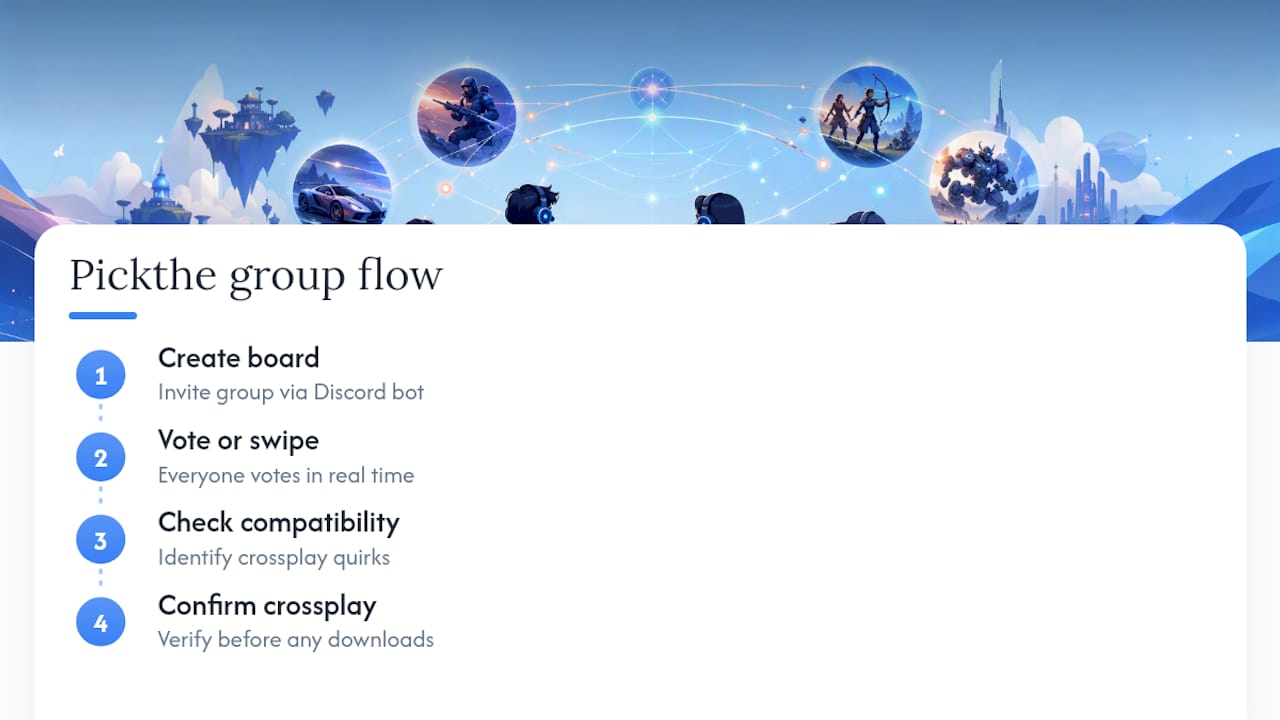
Picking the voice app solves half the problem. The other half is agreeing on a game everyone can actually join, which is where Discord and Pickthe's own integration work together well. Create a board, invite your group via the Discord bot, and let everyone swipe on games in real time while still sitting in the same voice channel.
The flow looks like this: create a board, vote or swipe, check compatibility, then confirm crossplay status before anyone downloads a thing. With a large and continuously updated database, it helps identify crossplay quirks that might be missed by quick forum searches, all without anyone leaving the voice call.
Battery life and data usage on mobile voice chat
Running voice chat on a phone costs more battery than most players expect, mainly because the microphone, network radio, and screen are all active simultaneously during a session. Encoding and transmitting audio continuously (even during quiet moments if push‑to‑talk isn't enabled) keeps the CPU busier than a silent app sitting in the background.
Data usage stays modest by streaming standards. Voice‑only traffic is far lighter than video, since apps like Discord compress speech with the Opus codec rather than sending raw audio. A few hours of voice chat typically uses a fraction of what a video call would consume, though exact figures vary by app and connection quality.
A few habits help both battery and data:
- Enable push‑to‑talk rather than open mic. It cuts continuous audio transmission when nobody's speaking.
- Lower screen brightness during long sessions, since the display often drains more than the voice app itself.
- Switch to Wi‑Fi where possible. Voice chat over mobile data works fine, but a weak cellular signal forces the radio to work harder, draining battery faster than a stable connection would.
- Close background apps competing for the same network and CPU resources.
None of this makes mobile voice chat impractical. It just means a three‑hour session on a phone will drain noticeably more battery than the same session with the phone plugged in or sat on Wi‑Fi.
A quick checklist before your next session
Default to Discord channels for casual play, but flip to push‑to‑talk the moment a match turns competitive. Test your mic five minutes before kickoff, not mid‑match. A workable flow: build a Pickthe board, vote while sat in a Discord voice channel, then jump straight into the winning game together.
Keep it simple. Mute when you're not talking, skip the background music, and let one person handle invites so nobody's left refreshing a lobby.
> — PickThe
Try Pickthe alongside your voice setup
Voice chat solves how your group talks. Pickthe solves what you actually play once everyone's connected, and the two work together without adding another app to juggle. Rather than spending twenty minutes debating which title works across your mix of PC, PlayStation and Xbox players, run your group through the crossplay compatibility checker while you're already sat in a Discord voice channel.
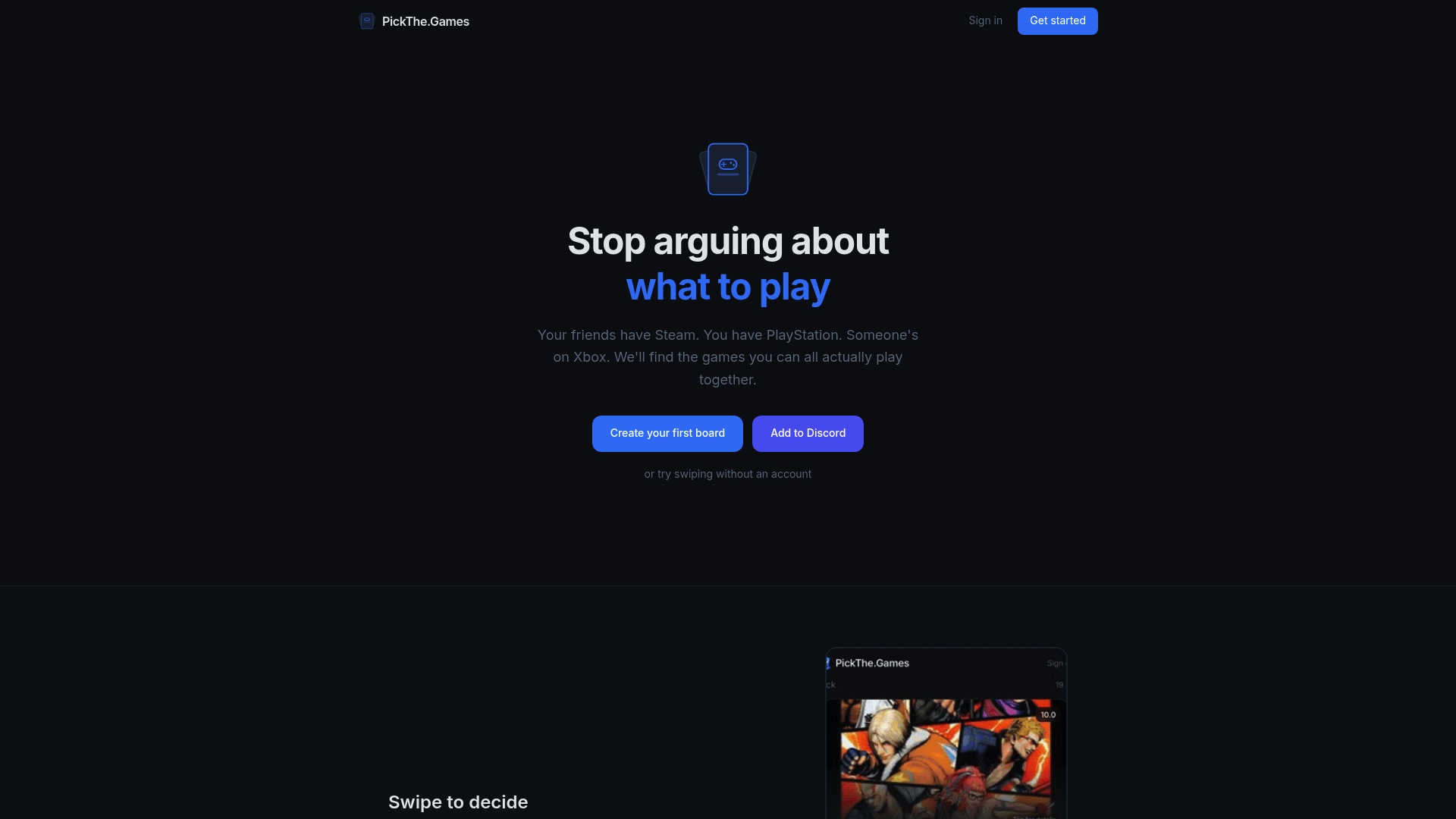
The swiping and voting boards work through the same Discord server you're already using for voice, so nobody has to leave the call to weigh in. With over 6,000 titles tracked and no paywall blocking the core tool, it's built for exactly the moment your group finishes loading in and someone asks "so what are we actually playing?" Create a board now and check what your group can play together in the time it takes to finish loading a lobby.
Sources
- Discord
- Mumble
- TeamSpeak
- How do multiplayer games and communication work for cross‑network play? — Xbox support
- Aizen93/voxium